
Bybit Protect is Bybit's comprehensive security framework designed to provide multi-layer protection for user accounts and assets. It combines multiple security measures to help prevent unauthorized access and safeguard sensitive account actions.
Bybit Protect consists of three levels of protection:
- Basic Protect – Core protection for everyday account activities
- Advanced Protect – Enhanced security for sensitive actions
- Scenario-Based Protection – Additional safeguards for specific situations
Based on your account's security level, Bybit Protect will recommend the most appropriate security settings to help strengthen your account protection.
Basic Protect
Basic Protect provides essential protection for common account activities, including logins, withdrawals, password retrieval and reset, security settings changes, and API management verification. It includes the following security features:
Email Authentication
A verification code is sent to your registered email address to confirm your identity when performing certain actions. You must enter this code to proceed. For more details, refer to:
- How to Update Your Registered Email Address
- Troubleshooting: Unable to Receive Email Verification Code
SMS Authentication
Works similarly to email authentication but sends the verification code to your registered mobile number. For more details, refer to:
Google 2FA Authentication
Adds an additional layer of security by requiring a time-based verification code generated by the Google Authenticator app. For more details, refer to:
- How to Bind Your Account’s 2FA via Google Authenticator
- How to Transfer Your Google Authenticator Code to Your New Phone
- Troubleshooting: Google Authenticator "Invalid Code" Error
Anti-Phishing Code
Once enabled, the anti-phishing code will be included in all official emails and SMS messages sent by Bybit. This helps you identify legitimate communications from Bybit and avoid phishing attempts. For more details, refer to How to Set Up the Anti-Phishing Code.
Passkey
Passkey offers a passwordless login method that uses biometrics (fingerprint or facial recognition) registered on your device for secure verification. For more details, refer to How to Set Up and Manage Passkey on Bybit.
Advanced Protect
Advanced Protect provides enhanced security for critical fund-related actions. It includes the following security features:
Secure Transaction Approval
Secure Transaction Approval allows you to designate a primary device to verify and approve transactions. This feature adds an additional layer of protection against unauthorized activity while offering a more seamless user experience. For more details, refer to How to Activate/Remove Secure Transaction Approval.
Fund Password
The fund password is a separate password required for certain transactions, such as withdrawals and P2P trading. It is different from your account login password and helps enhance the security of your assets. For more details, refer to How to Set Up and Disable Your Fund Password.
Scenario-Based Protection
Scenario-Based Protection provides additional security measures designed for specific situations. It includes the following security features:
Withdrawal Security
Withdrawal Security provides additional safeguards to help prevent unauthorized withdrawals. These features ensure that assets can only be withdrawn to trusted addresses and within controlled limits.
- Withdrawal Address Whitelist: Withdrawals to whitelisted addresses do not require Google 2FA or email verification.
- Withdraw via Address Book: Allows withdrawals only to addresses saved in your address book.
- New Address Withdrawal Lock: Restricts withdrawals to newly added addresses for 24 hours.
- Manage Crypto Withdrawal Limits: Allows you to set daily and monthly withdrawal limits to stay in control.
For more details, refer to:
- How to Manage Your Withdrawal Address Book
- How to Add a Withdrawal Wallet Address
- How to Change Your Withdrawal Limit
How to Access Bybit Protect
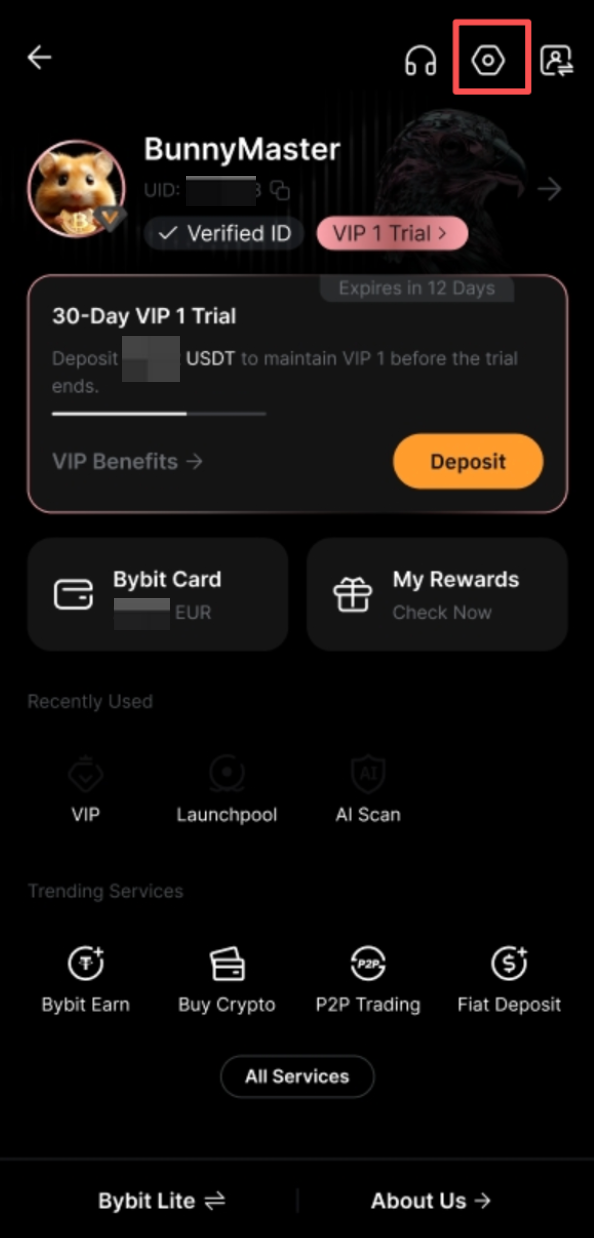
Step 1: Open the Bybit App, tap your profile picture in the top-left corner, then tap the Settings icon to open the User Center.
Step 2: At the top of the User Center, you will see the Bybit Protect banner. It recommends security settings (such as Google Authenticator or Passkey) based on your account's security level.
- Tap the question mark (?) icon to learn more about Bybit Protect.
- Tap the Enable button to proceed to the setup page.
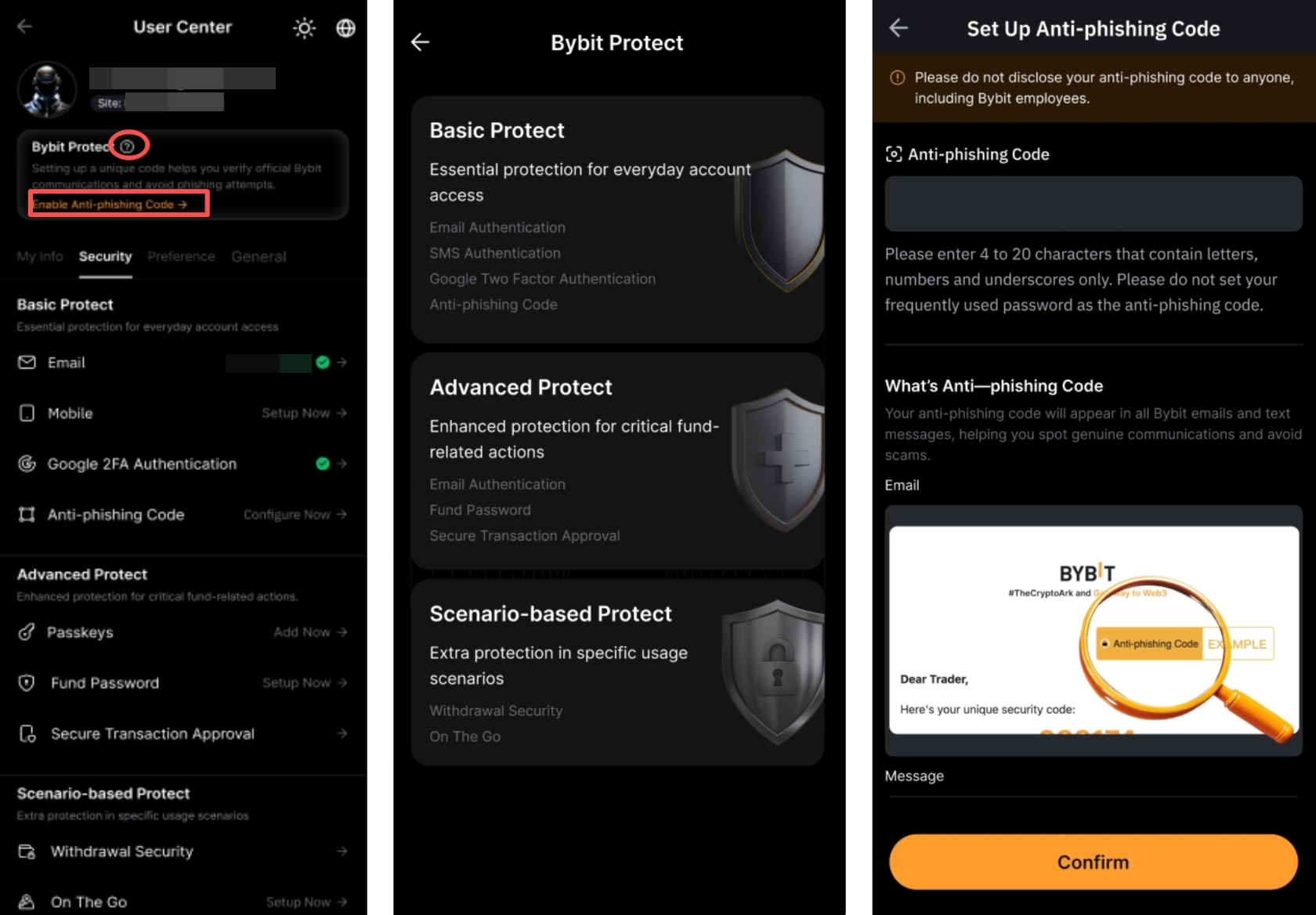
Step 3: Complete the required setup and tap Confirm.
You can also access all security settings under the Security tab, where you can manage and update them anytime.
Security Tips
To help keep your account secure:
- Never share your verification codes with anyone.
- Always check the anti-phishing code in emails or SMS messages from Bybit to ensure the message is legitimate.
- Use the Bybit Authenticity Check to verify official Bybit URLs and sources.
- Enable multiple security features in Bybit Protect for stronger account protection.
- Contact our Customer Support immediately if you notice any suspicious activity on your account.
For more safety practices, refer to How to Enhance the Security of Your Account.