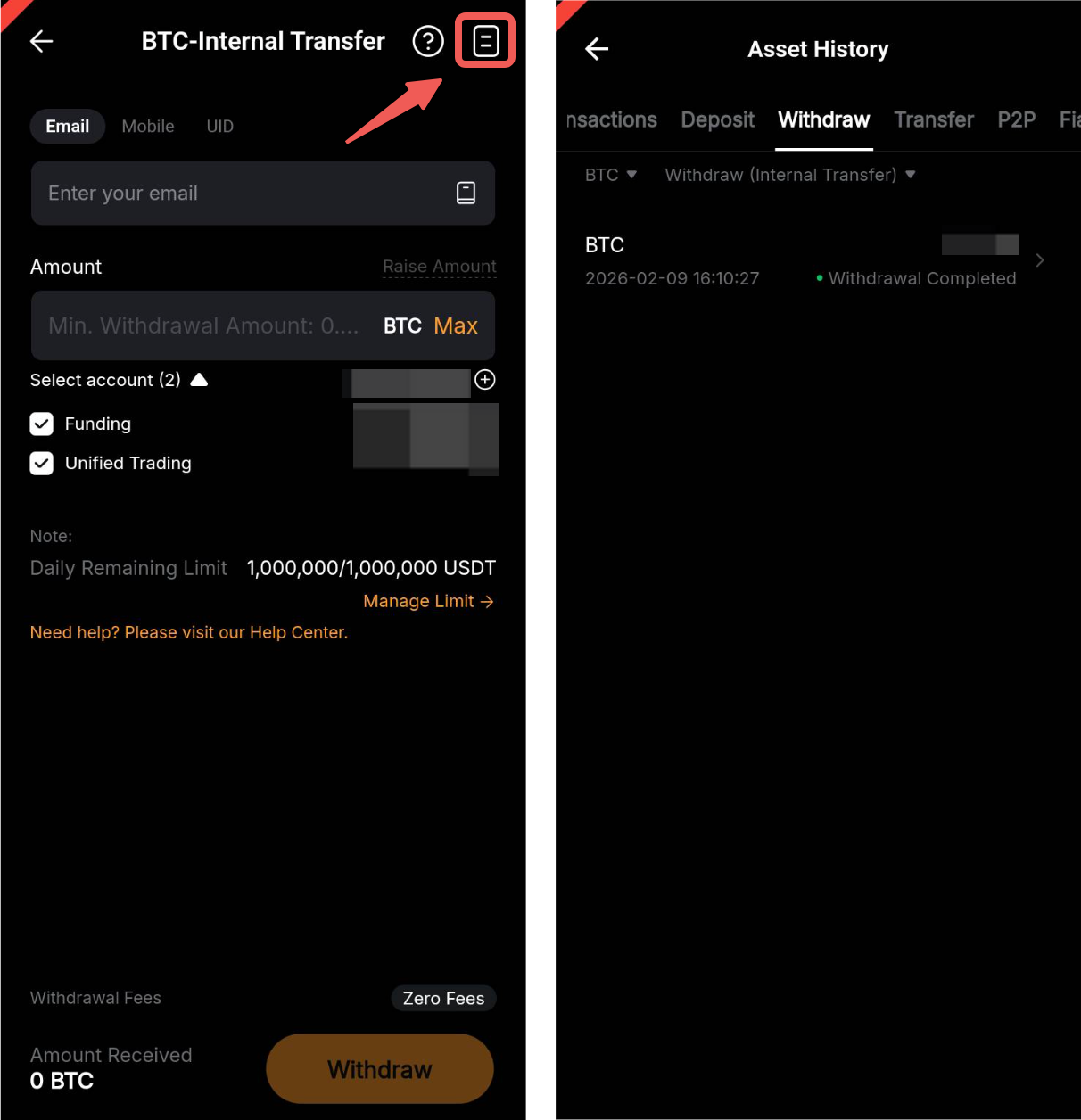
Bybit’s Internal Transfer withdrawal method allows users to withdraw assets to other Bybit accounts instantly without a withdrawal fee. If you want to withdraw your assets to another exchange or wallet, you will need to withdraw your assets using on-chain withdrawal. For details, please refer to How to Submit An On-Chain Withdrawal Request.
Here’s a step-by-step guide to withdrawing assets on Bybit via Internal Transfer.
Step 1: Please go to Assets located at the bottom right-hand corner of the Bybit App page. Then, select Withdraw → Crypto Withdrawal on the Assets page.
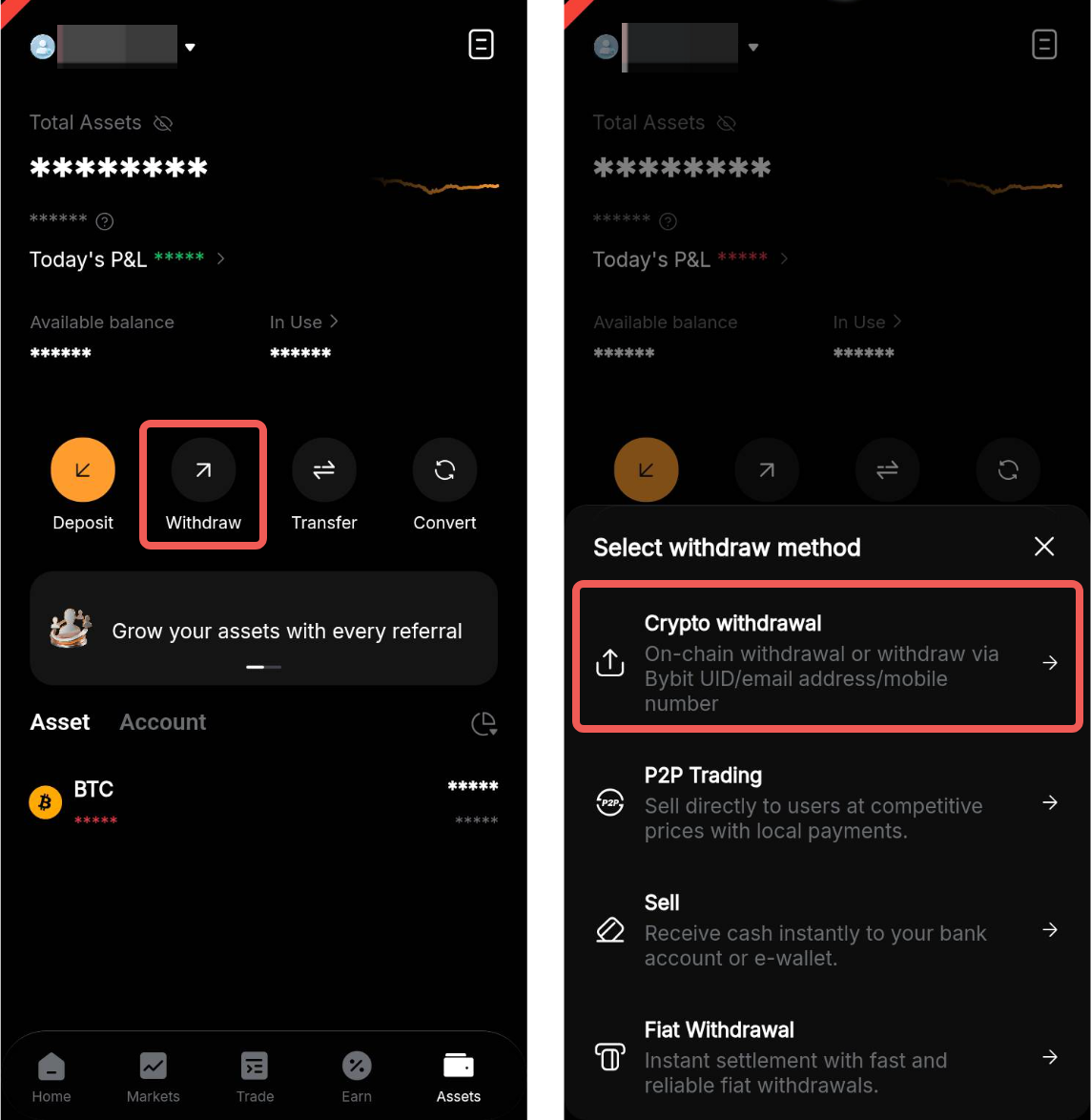
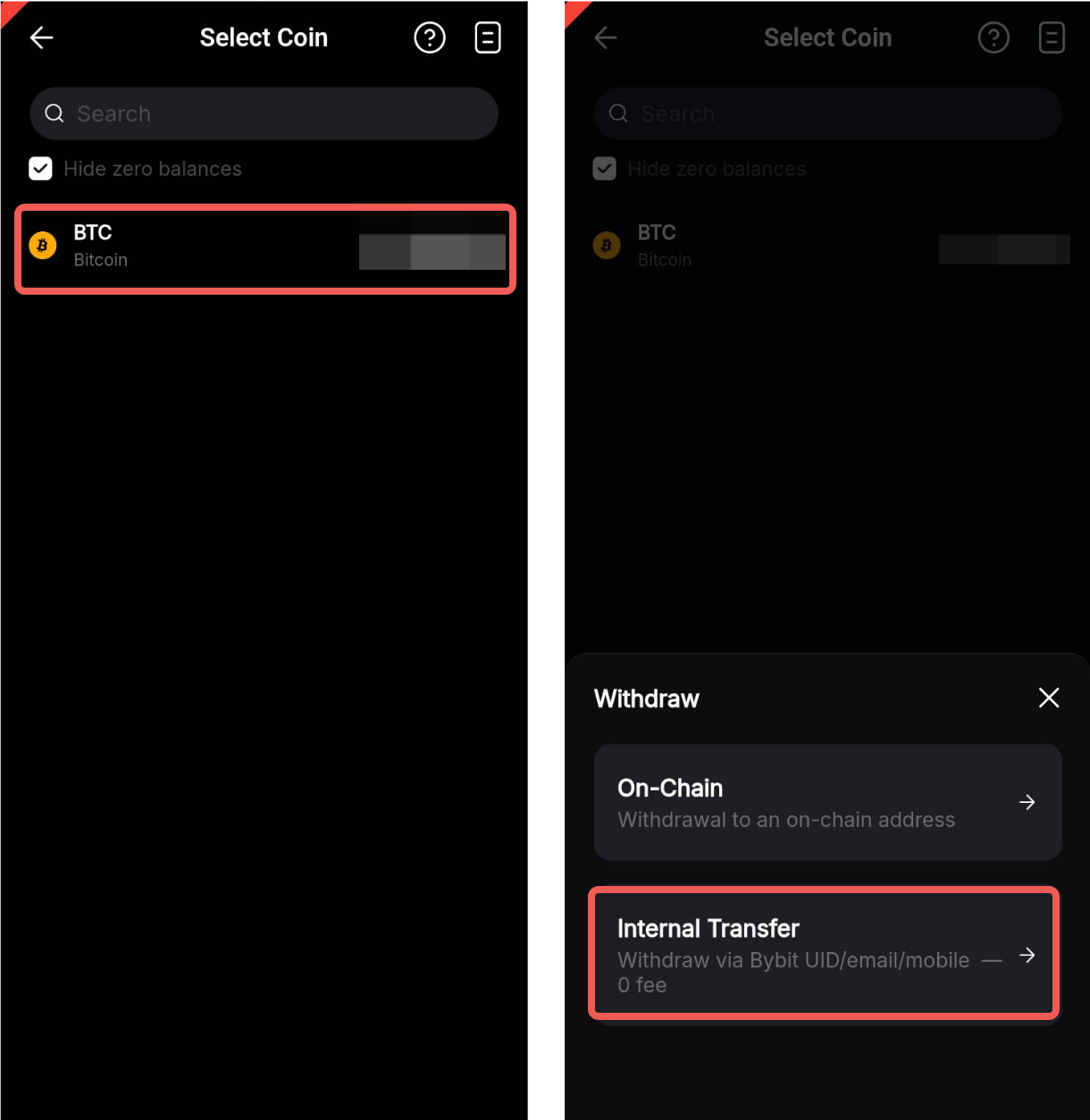
Step 2: Choose the coin you want to withdraw, then tap on Internal Transfer.
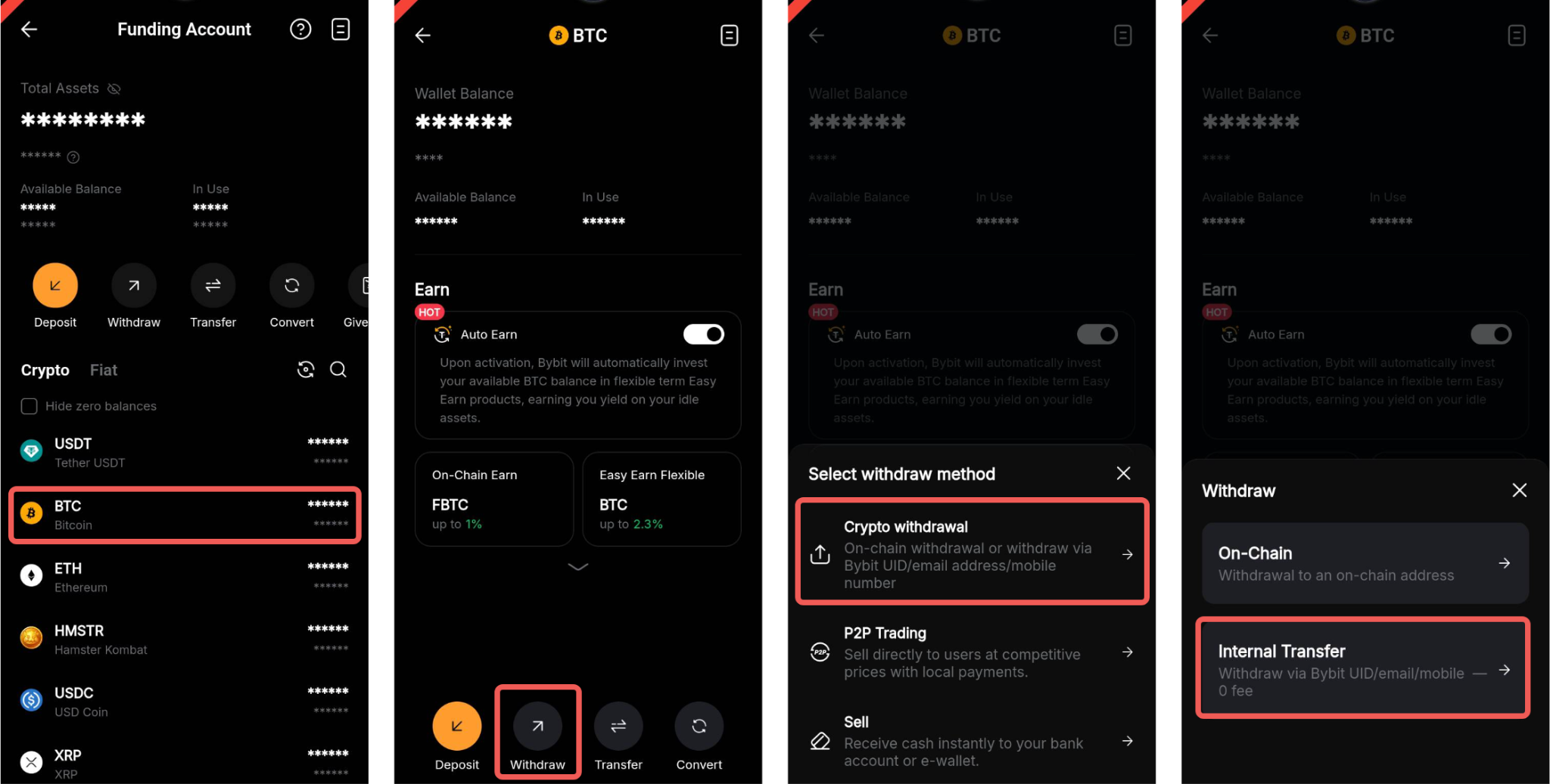
Alternatively, go to Funding Account, tap on your preferred coin to open the Coin details page and tap on Withdraw. In available withdrawal methods, select Crypto Withdrawal → Internal Transfer.
Notes:
- The Withdraw button for each coin is only accessible via your Funding Account.
- If you want to withdraw assets located in your subaccounts, please transfer them to your main account by tapping on Transfer and select the Across Subaccount(s) tab.
Step 3: Please select or fill in the following parameters to submit your withdrawal request on the Withdraw page:
a. Recipient Account: Enter the recipient’s email address, UID or mobile number
b. Amount: Enter the amount you want to withdraw, or click on Max to make a full withdrawal.
c. Select Account: Tick the available boxes to choose from which account you would like to make a withdrawal. You can opt to withdraw from your Funding Account, Unified Trading Account, or both.
d. Please ensure all information is correct before tapping on Withdraw.
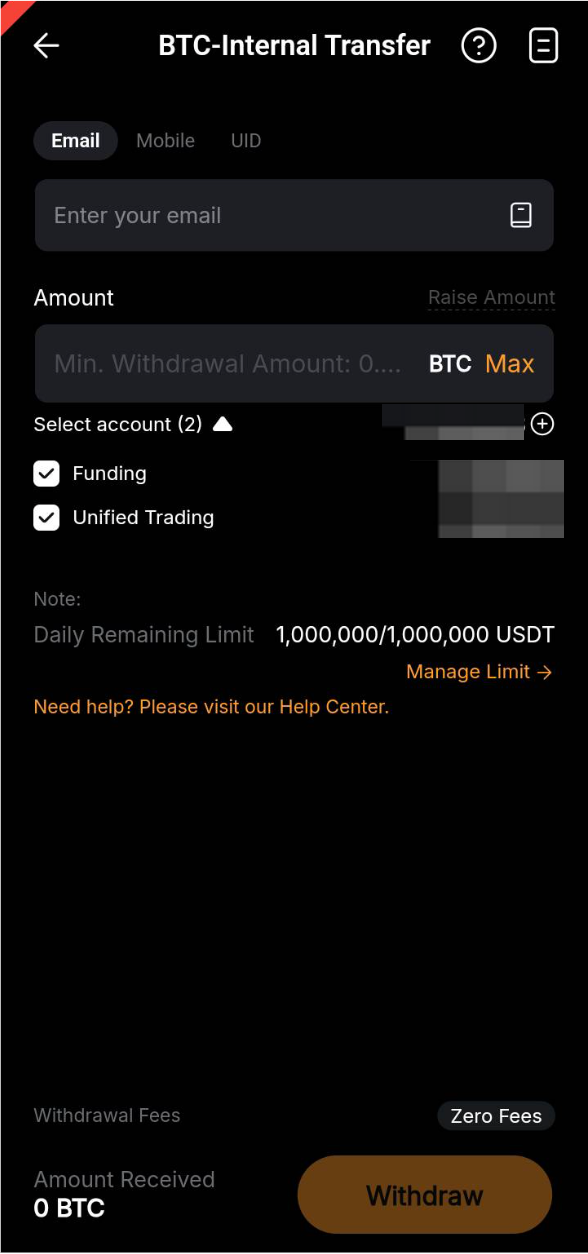
Notes:
— Withdrawals via internal transfers can only be done between two Bybit accounts that have completed Identity Verification.
— Please note that withdrawals from UTA might increase the IMR and MMR of your account, leading to a possible increase of account risk.
— You can also add an email address, UID or mobile number to your wallet address book by tapping on Add. For more details, please refer to How to Add a Withdrawal Wallet Address.
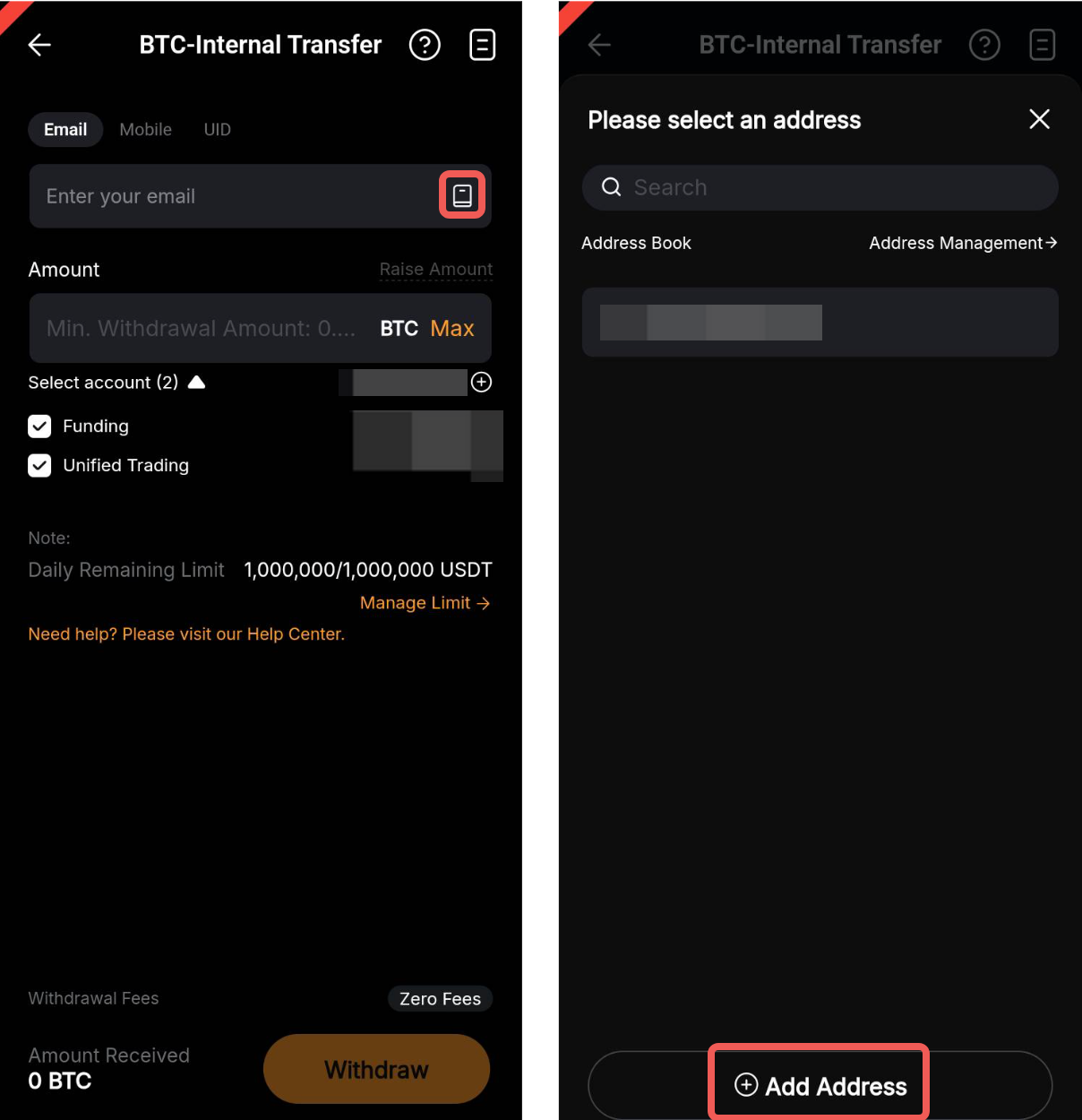
— If you perform an internal transfer for assets located in your Unified Trading Account, the funds will be automatically transferred to your Funding Account first for the withdrawal process.
— Please be aware that if you have an open position or margin borrowing, withdrawing funds from your Unified Trading Account might increase your liquidation risk.
Step 4: Tap on Confirm on the Security Verification window upon being prompted.
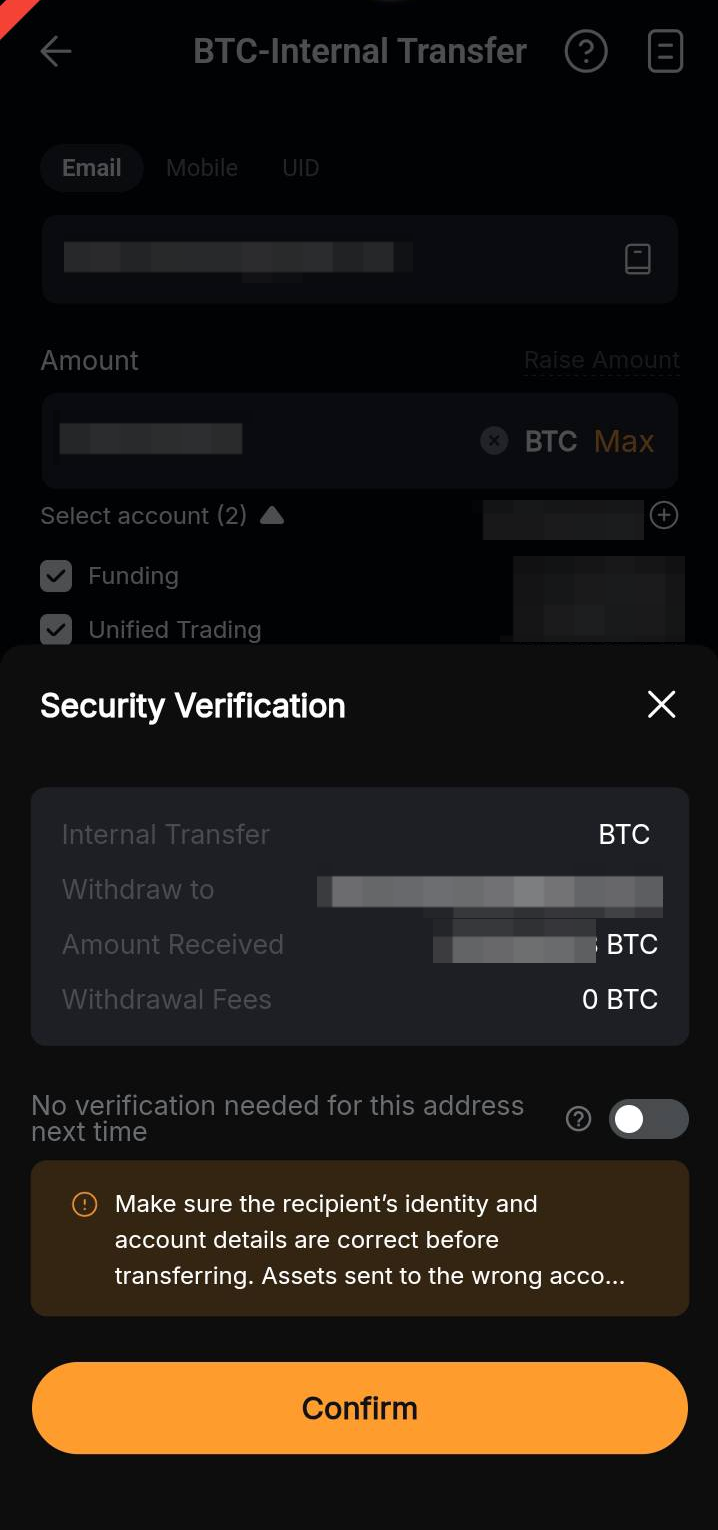
Please note that the following two verification steps — email verification and Google Authentication — are required if your recipient email address and/or mobile number are not yet verified. To learn more about how to manage your withdrawal security, please refer to this page.
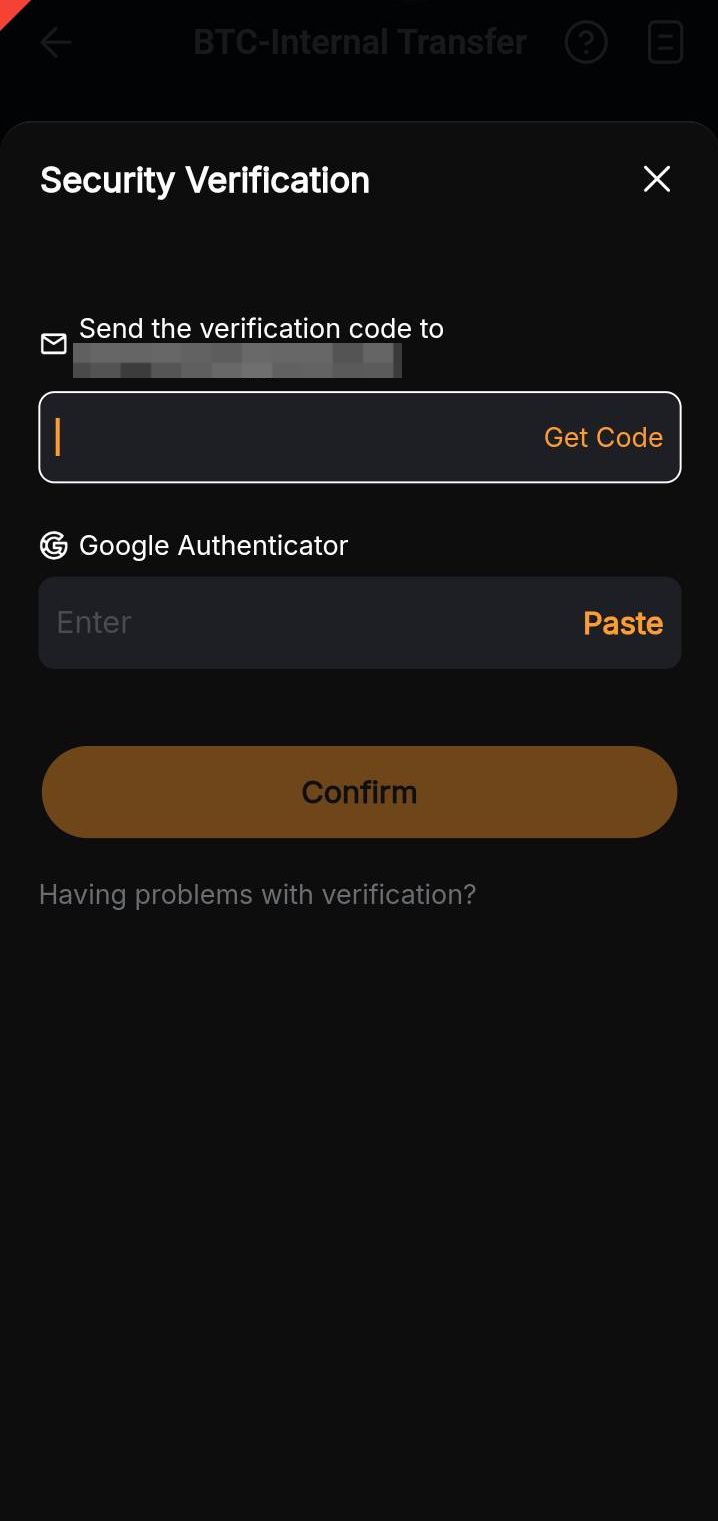
a. Email verification code: Tap on Get Code and the email containing your email verification code will be sent to the registered email address for your account. Please enter the verification code that you’ve received in the available field.
Tip: If you have not received the email, please check your spam folder or refer to Troubleshooting: Unable to receive Email verification code. The verification email is only valid for five minutes.
b. Google Authenticator: Please enter the 6-digit Google Authenticator 2FA security code you’ve obtained.
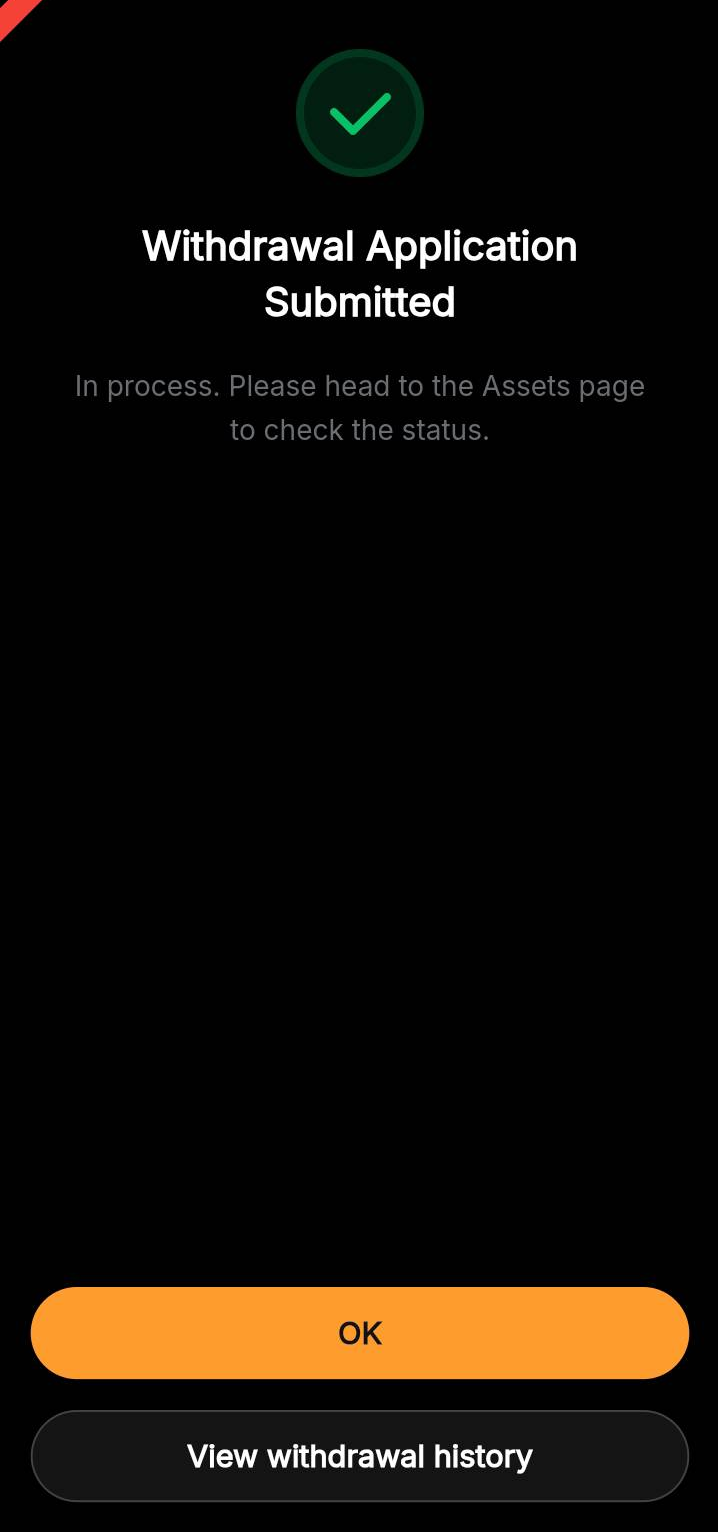
Your withdrawal request has been successfully submitted!
To view your internal transfer history, please go to Funding Account and tap on the history icon in the upper right corner. Select Withdraw (Internal Transfer) in the Withdraw tab. If you are the recipient, please check the Deposit (Internal Transfer) record under Deposit.
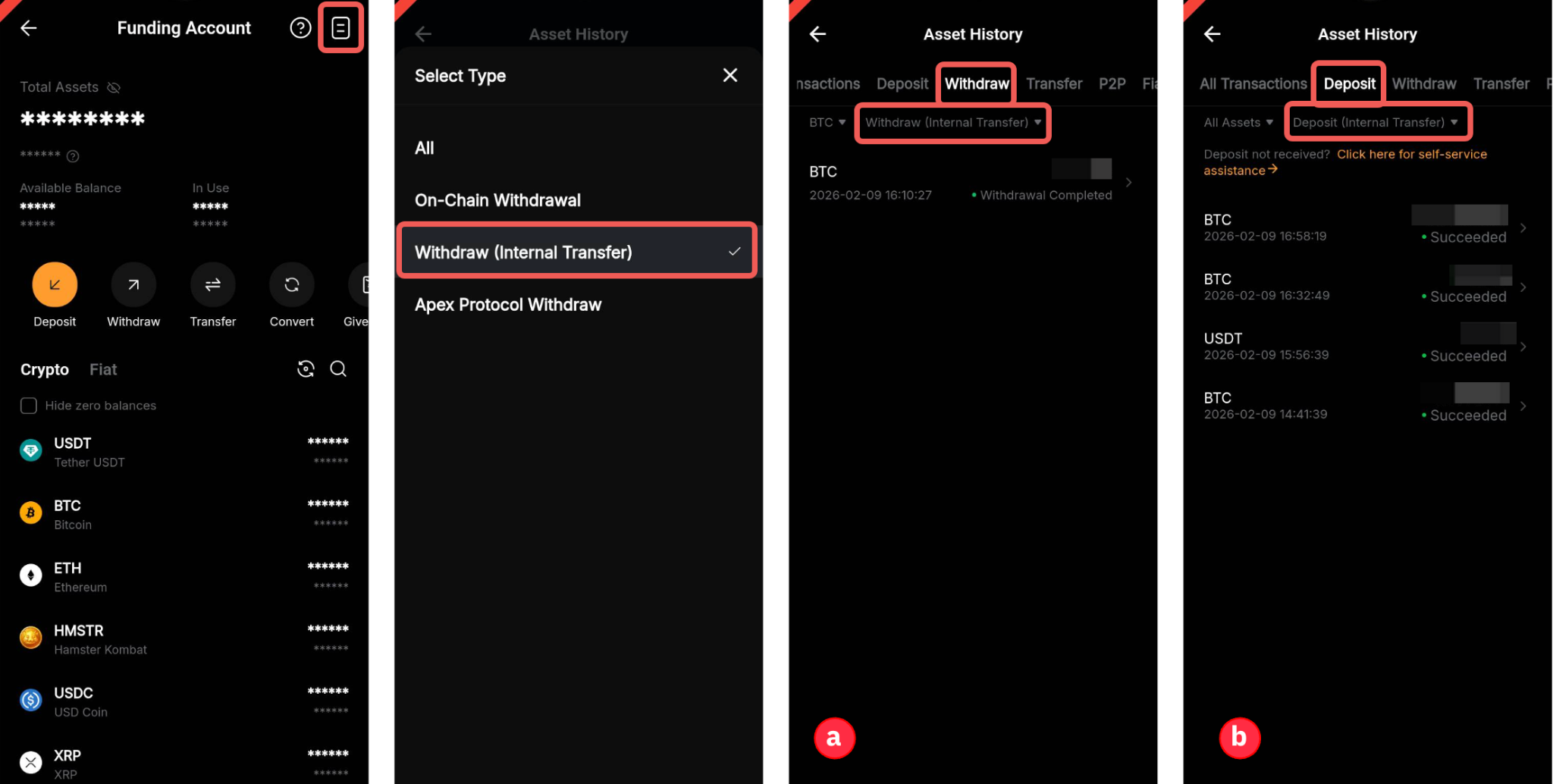
Alternatively, you can go to the Internal Transfer withdrawal page of your selected coin and tap on the history icon. You will be automatically redirected to the coin’s internal transfer withdrawal records on the Asset History page.