Here's a detailed guide to help you transfer assets between your Funding Account and Unified Trading Account (UTA) on Bybit.
Transfer Assets
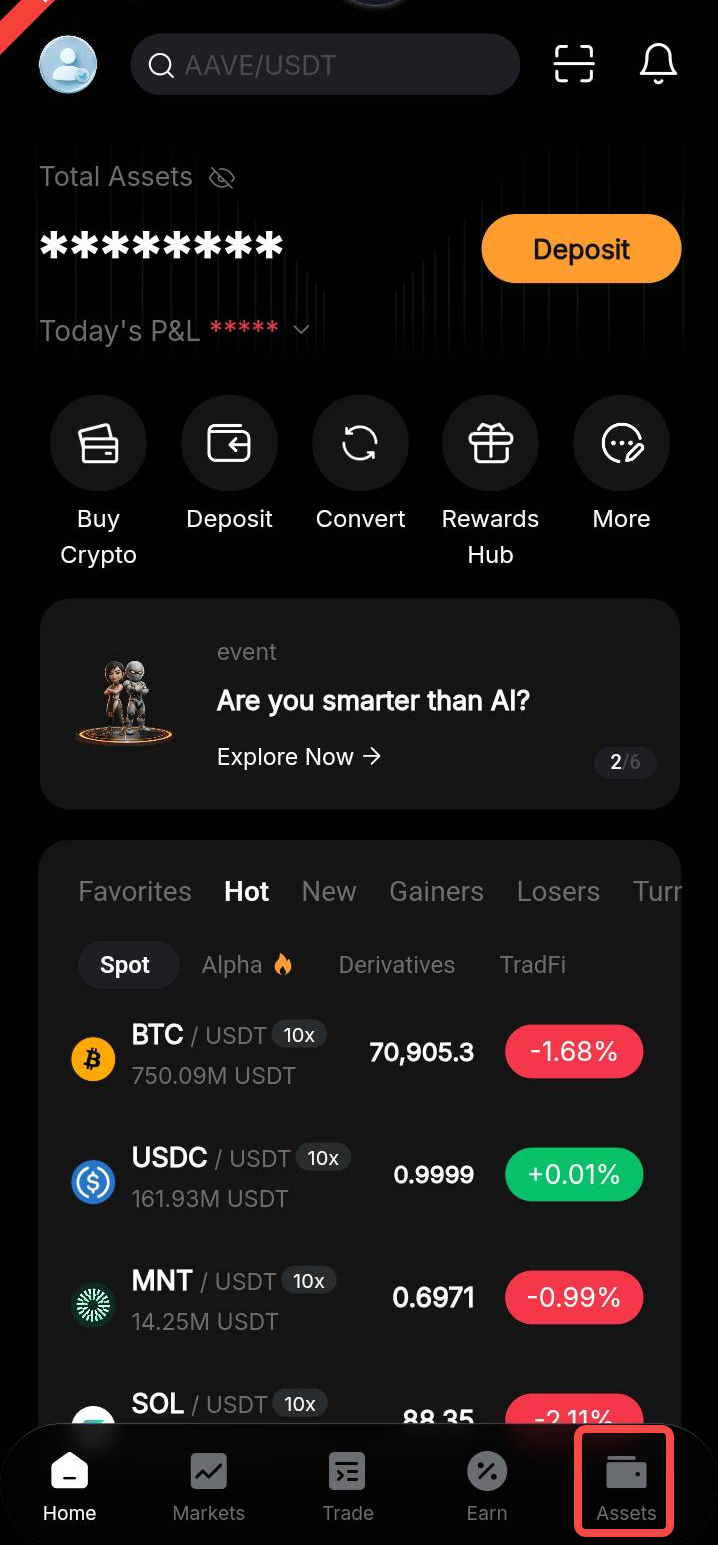
Step 1: On the Bybit App homepage, tap Assets in the bottom-right corner to open the Assets page.
Step 2: For a single-asset transfer, tap the asset you wish to transfer under the Asset tab. Then select Transfer on the coin details page.
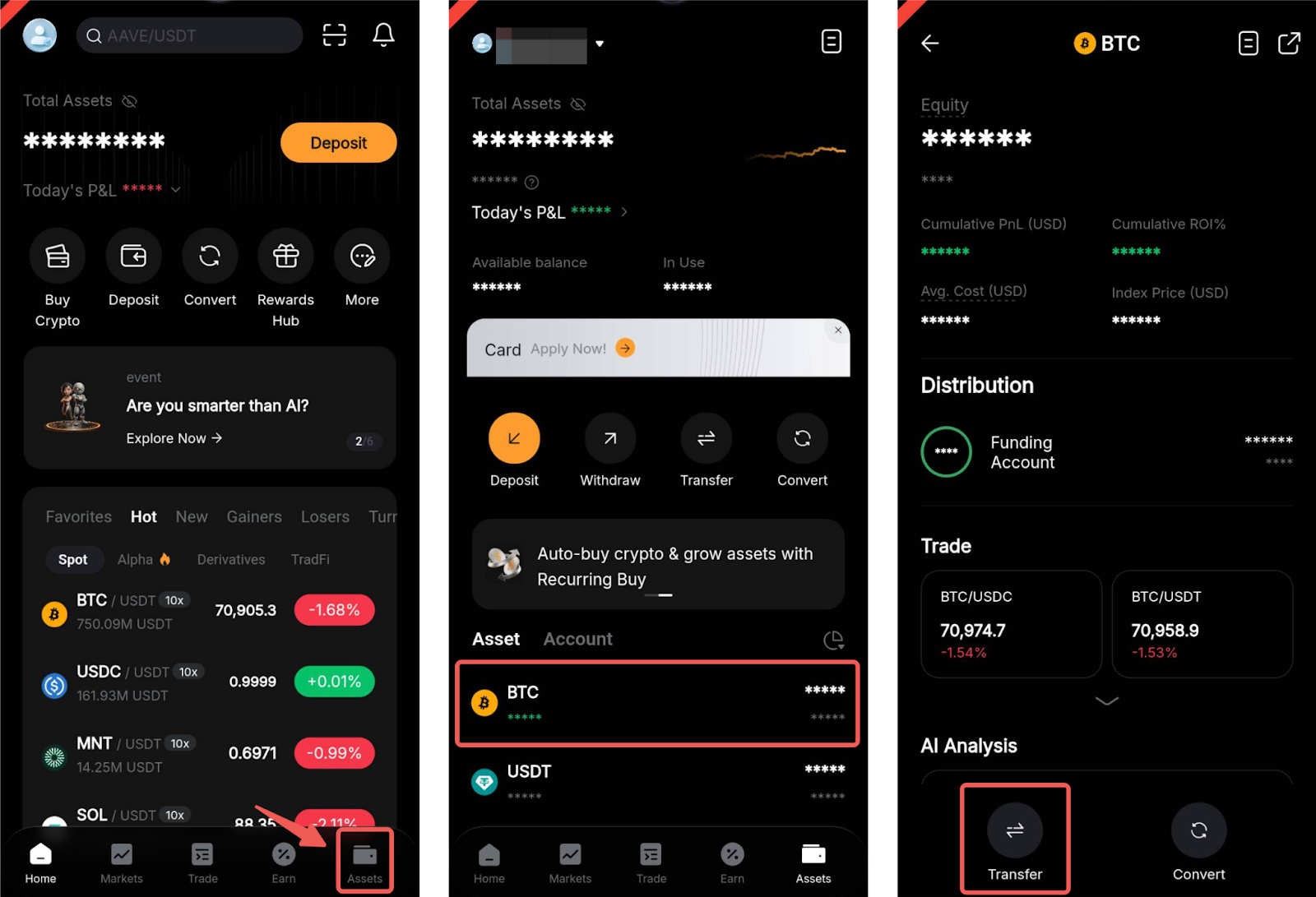
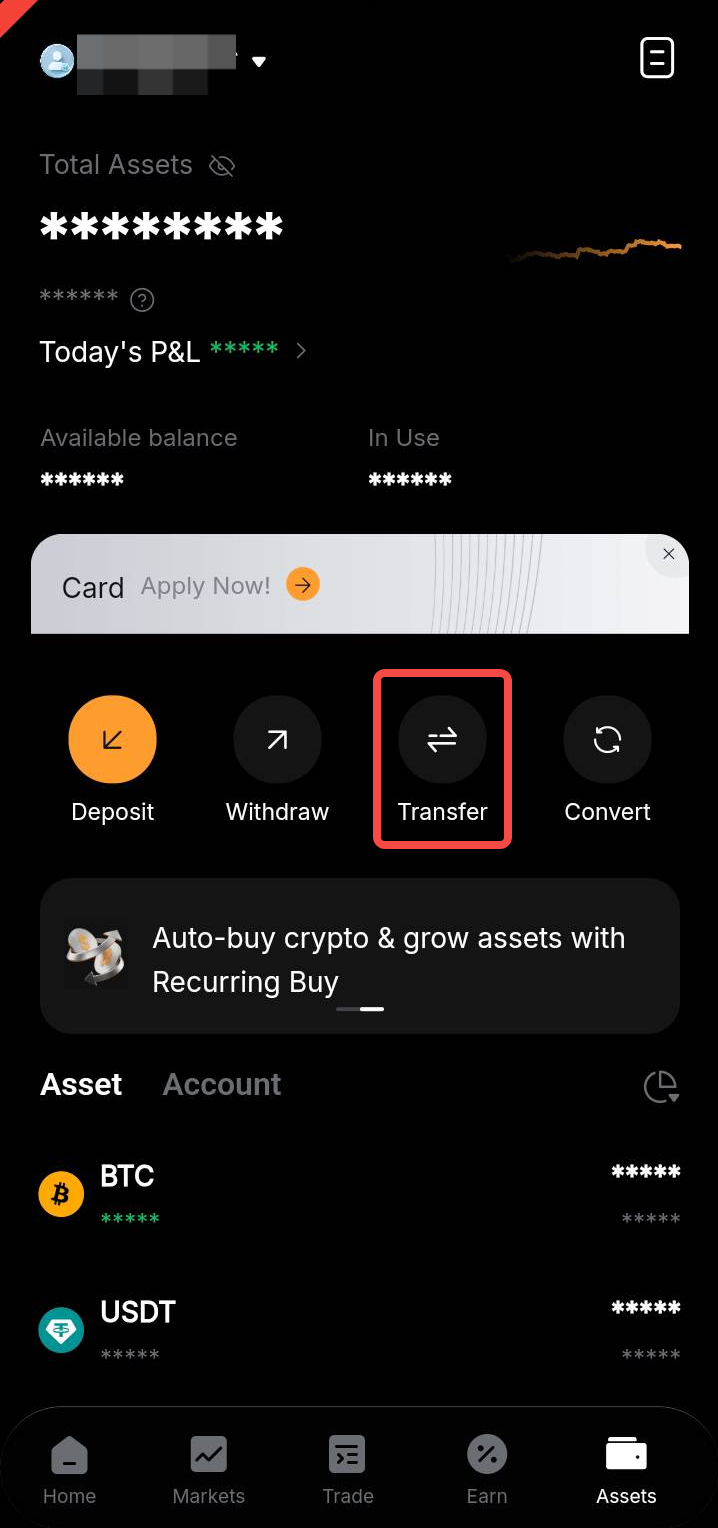
Alternatively, tap Transfer on the Assets page or from your Funding Account/UTA page if you wish to transfer multiple assets at once.
Step 3: A Transfer pop-up window will appear.
Single-Asset Transfer
To transfer a single asset, select the sending and receiving accounts, coin, and transfer amount, then tap Confirm.
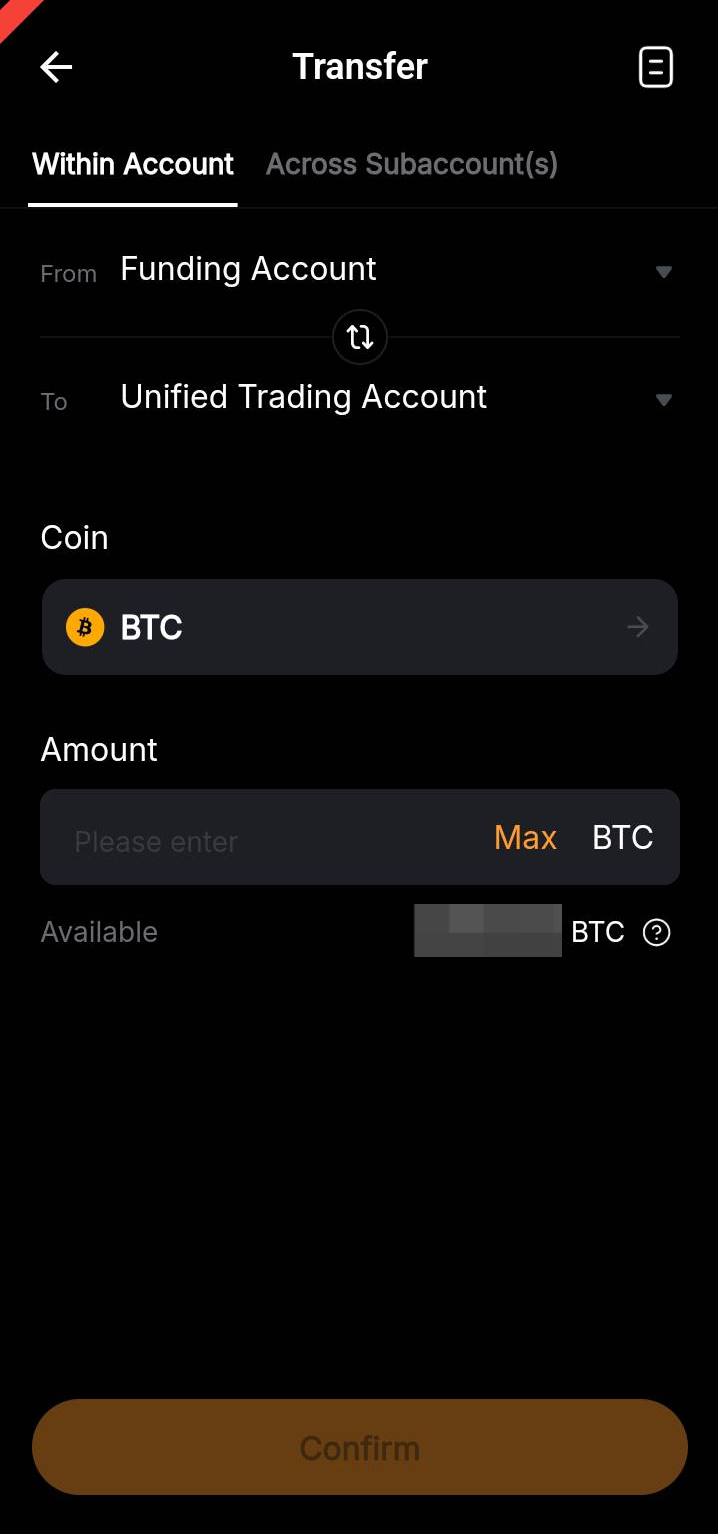
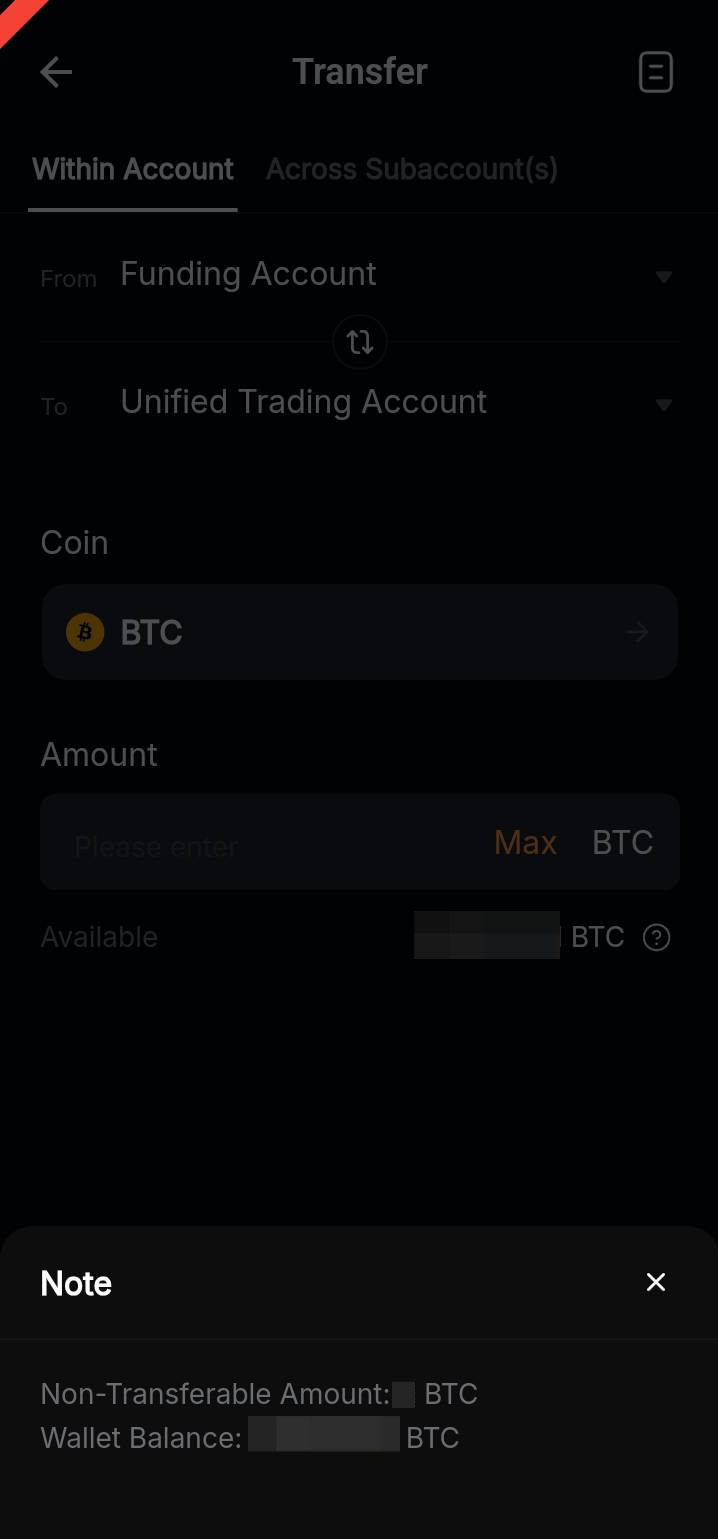
If the transferable amount shown is lower than expected, tap the question mark icon to view your account's total balance and the amount currently frozen (non-transferable) due to the following reasons:
- Bonuses cannot be transferred.
- Your funds are being used as collateral for trading.
- Deposited funds are currently under risk control review.
Bulk Transfer
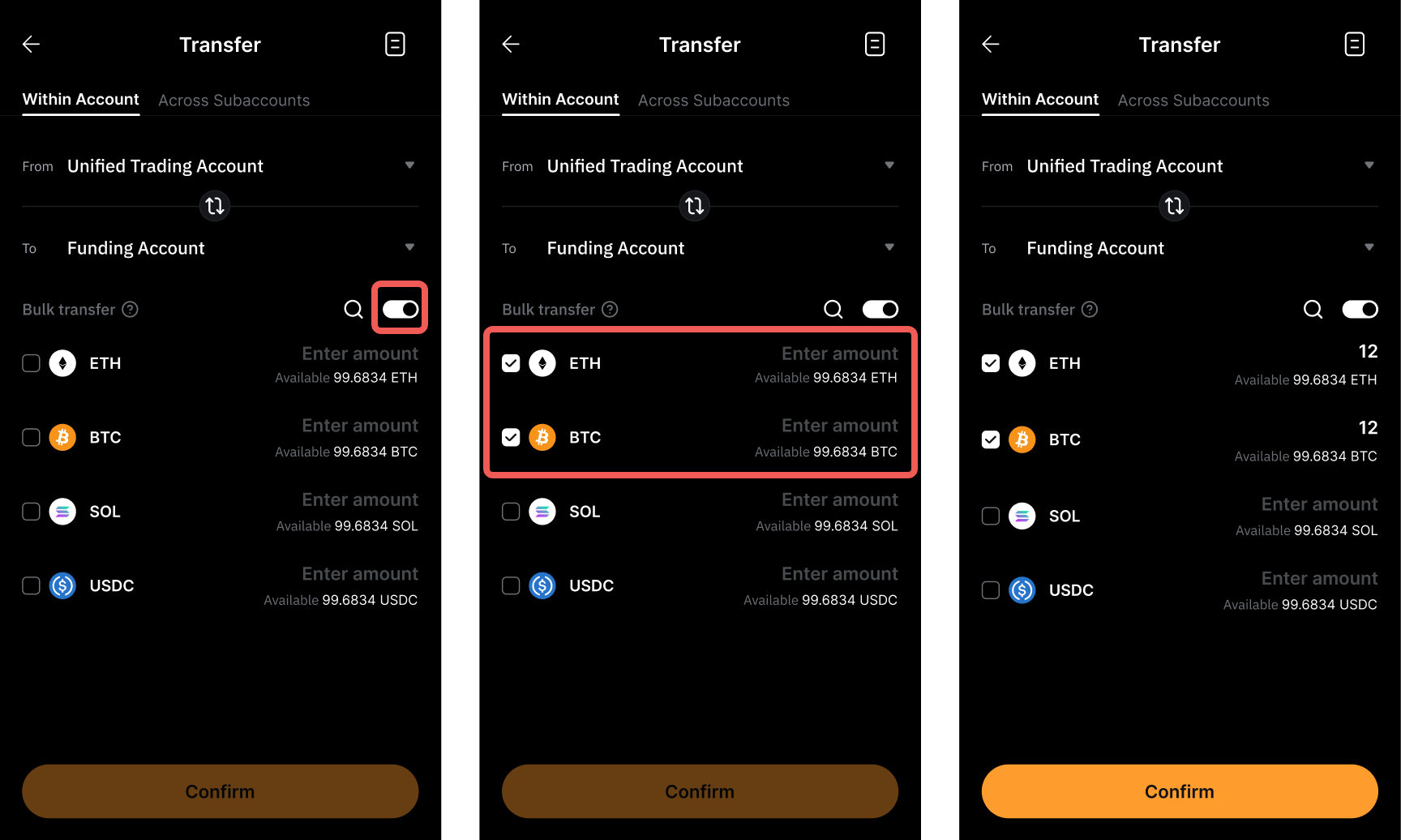
To transfer multiple assets at once, enable the Bulk Transfer option after selecting the sending and receiving accounts. This feature is currently not available to users with outstanding Institutional Loans.
A list of transferable assets will appear. The available balance for each coin will also be shown.
Select the coins you wish to transfer and enter the transfer amount in the corresponding column. Once you've confirmed your selections, tap Confirm.
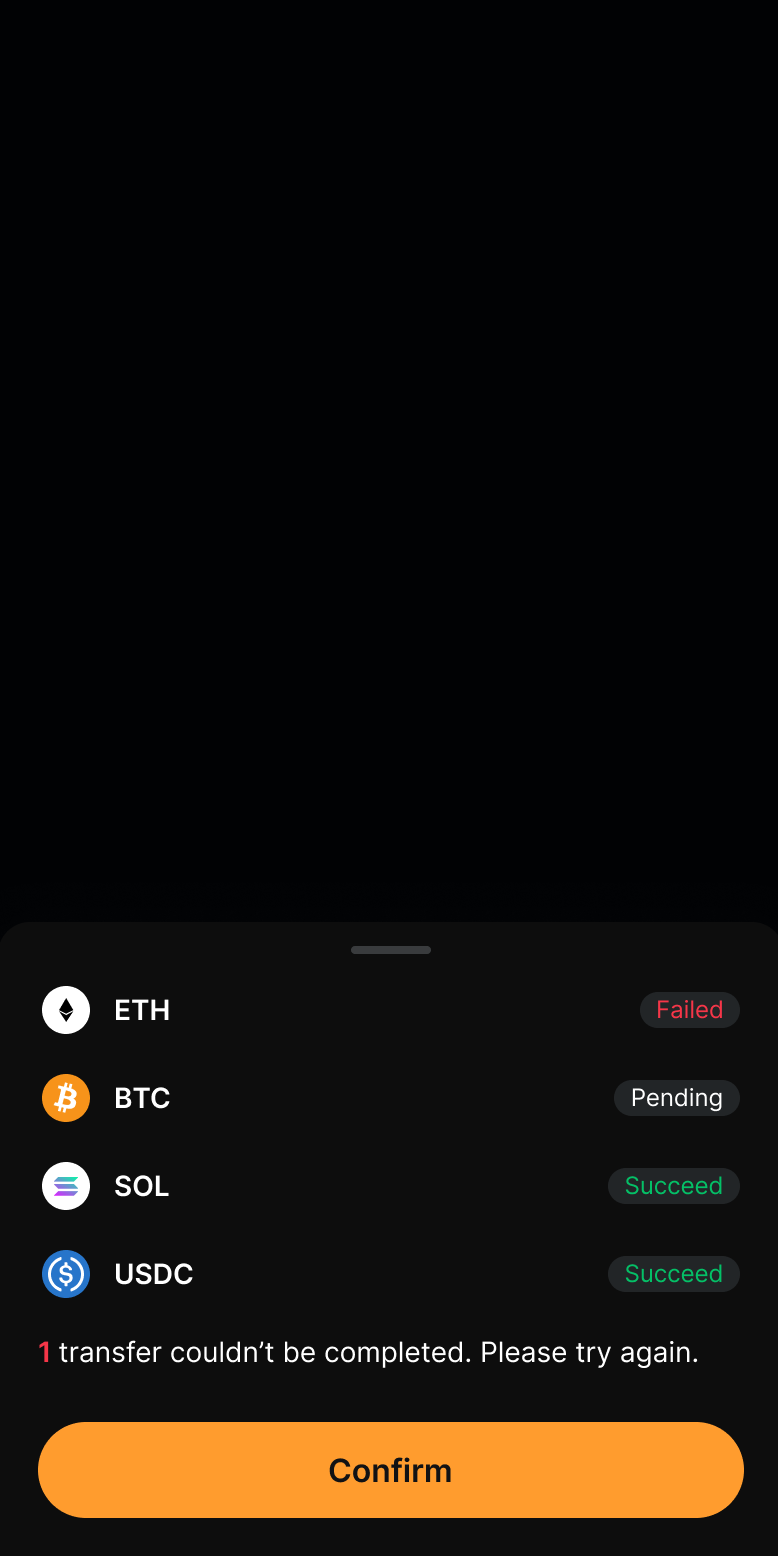
After the bulk transfer is initiated, you can view the transfer status for each coin. Please note that the transfer from the UTA may fail if the available margin balance becomes insufficient due to changes in your account's initial margin rate.
Notes:
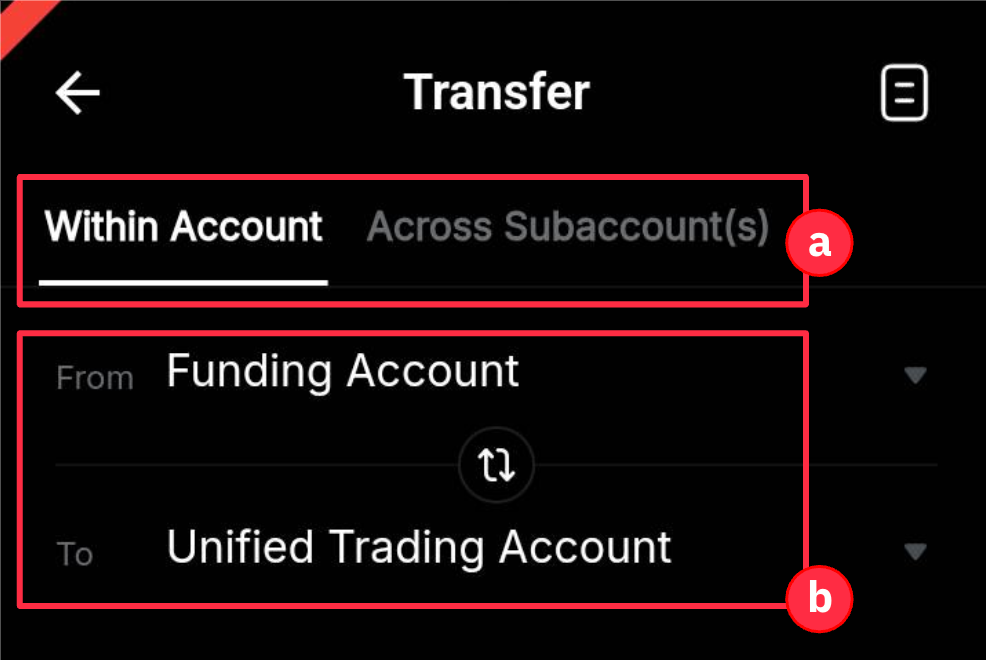
a. Asset transfers are supported within your Main Account and across Subaccounts. For more information on transferring assets to your Subaccounts, follow the steps here.
b. You can select each account from the menu or swap the sending and receiving accounts by tapping the two-arrow icon.
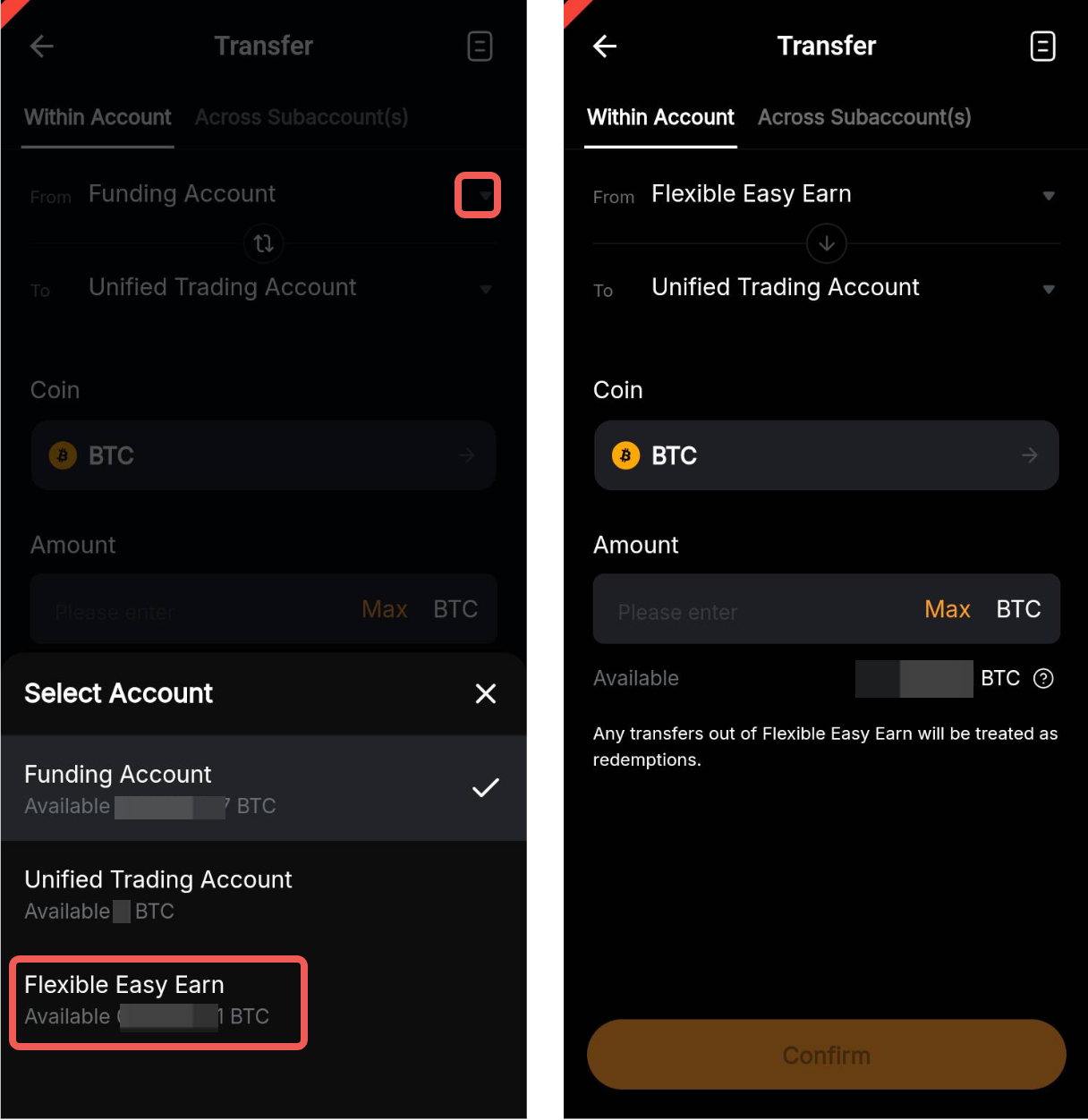
c. You can also select Flexible Easy Earn as the sending account. The system will automatically redeem funds from your Flexible Easy Earn positions to complete the transfer. However, Flexible Easy Earn cannot be selected as the receiving account.
d. If you have outstanding Derivatives liabilities in your UTA, transferred assets will be automatically used for repayment. For more information, please visit here.
View Transfer History
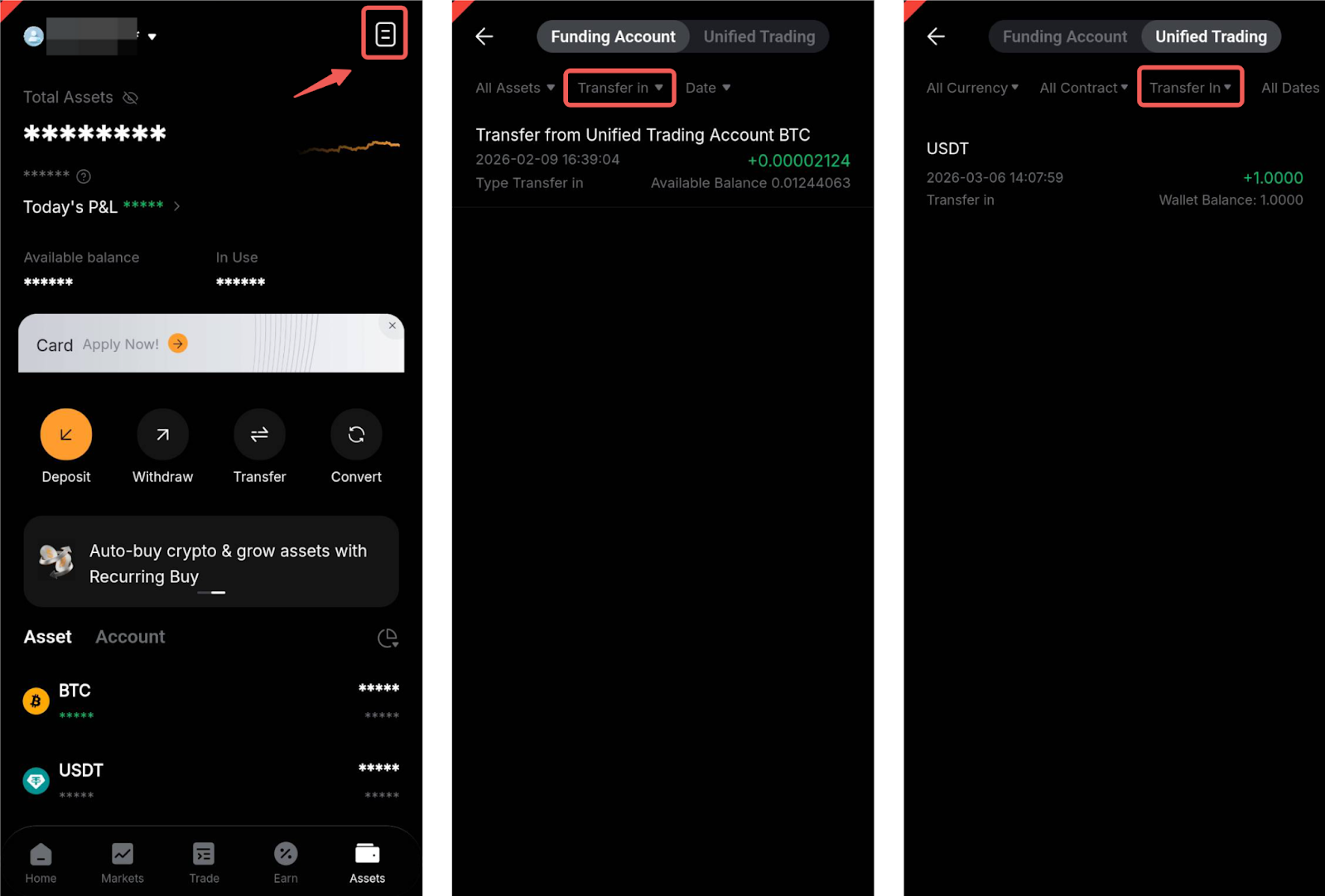
From the Assets Page
Tap the History icon in the top-right corner of the page. Switch between the Funding Account and the UTA at the top, then filter the Type by Transfer in or Transfer out to view your transfer history.
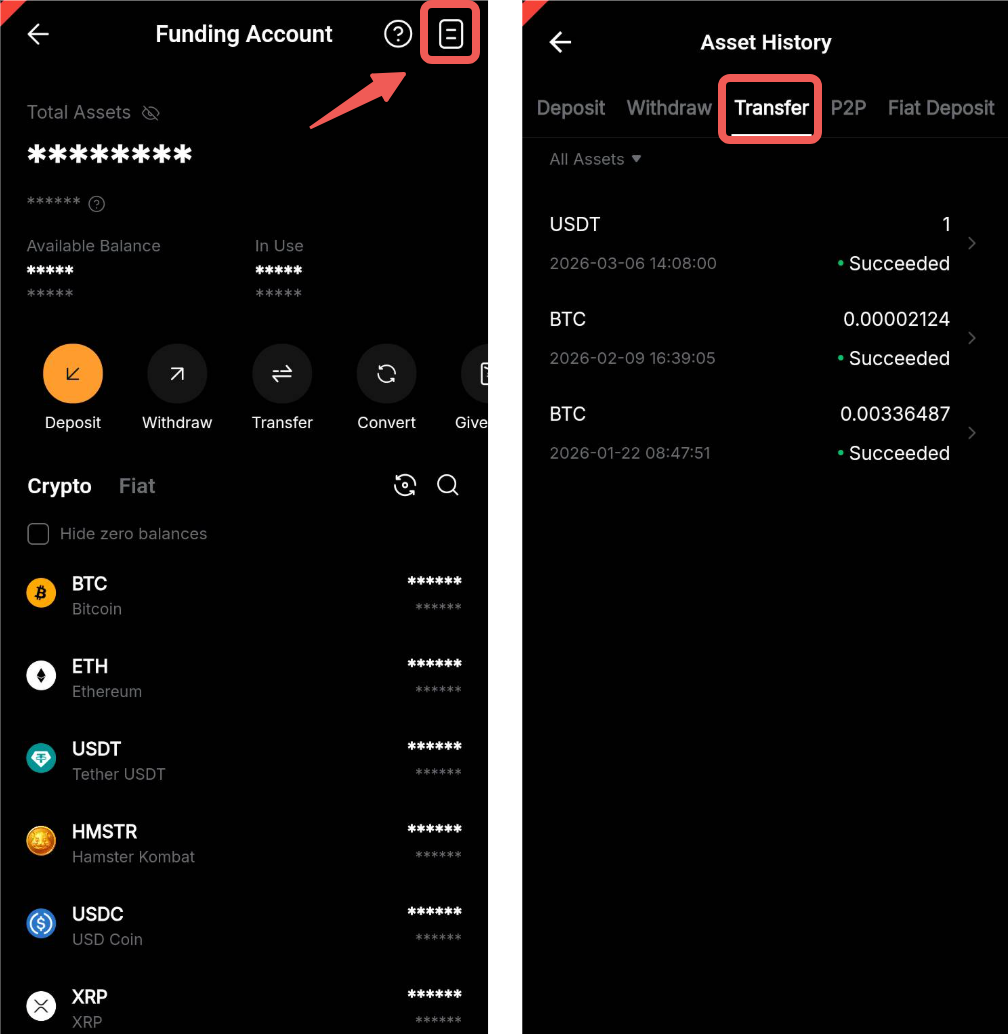
From the Funding Account
Tap the History icon in the top-right corner of your Funding Account page. Once redirected to the Asset History page, select the Transfer tab and filter the Type by Transfer in or Transfer out.
From the UTA
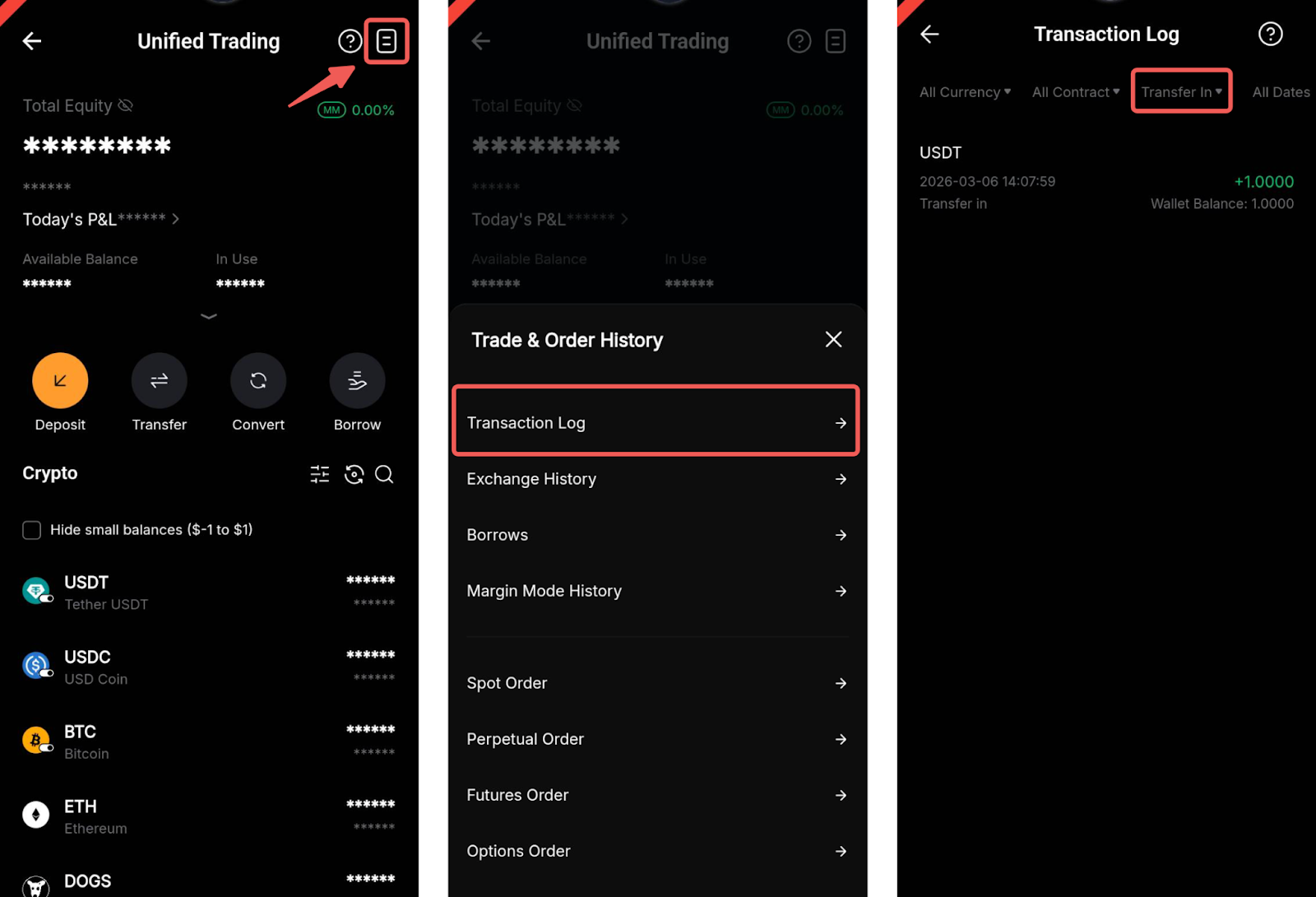
Tap the History icon in the top-right corner of your UTA page. Select Transaction Log and filter the Type by Transfer in or Transfer out.