Futures Grid Bot

How to Get Started with Futures Grid Bot on Bybit

logo
Last updated on 2026-04-08 11:59:51
Share

Here’s a step-by-step guide to creating your first Futures Grid Bot on Bybit.


  1. Create a Futures Grid Bot

  2. View Your Futures Grid Bot

  3. Modify Futures Grid Bot Parameters

  4. Withdraw Futures Grid Bot Profits

  5. Terminate Your Futures Grid Bot


Create a Futures Grid Bot

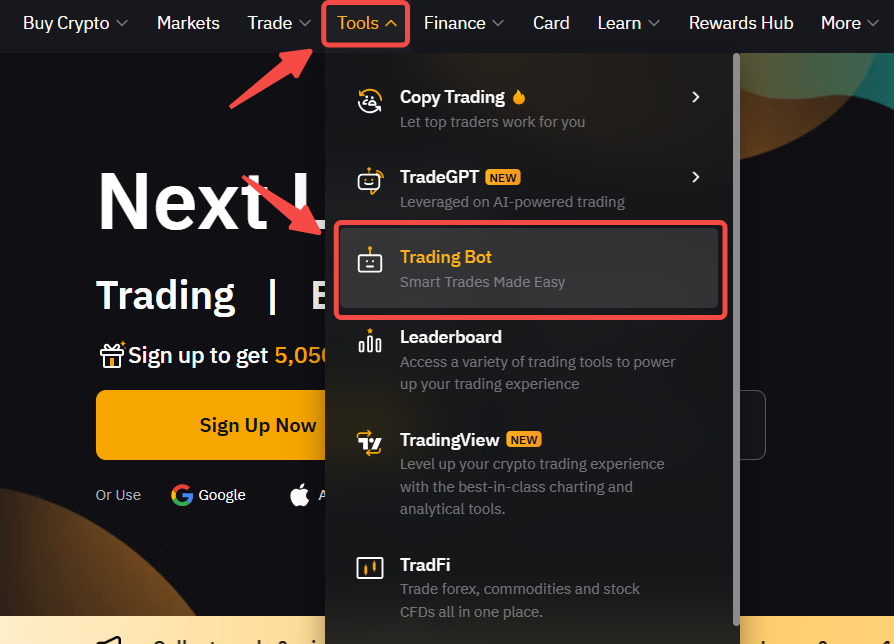
Step 1: Please click on Tools → Trading Bot in the navigation bar to enter the Bybit Trading Bot page.


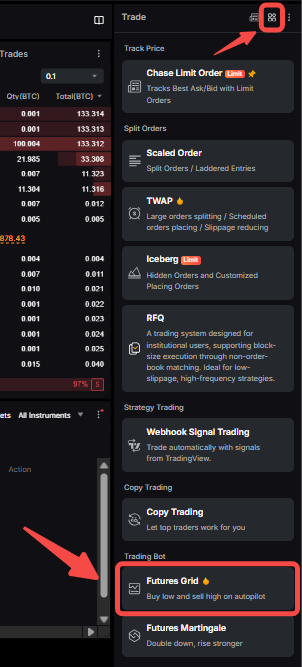
Alternatively, on the Futures Trading page, navigate to the order zone on the right side and select Tools → Futures Grid.


Step 2: Create your Futures Grid Bot by clicking on Create to go to the Create Futures Grid Bot page.
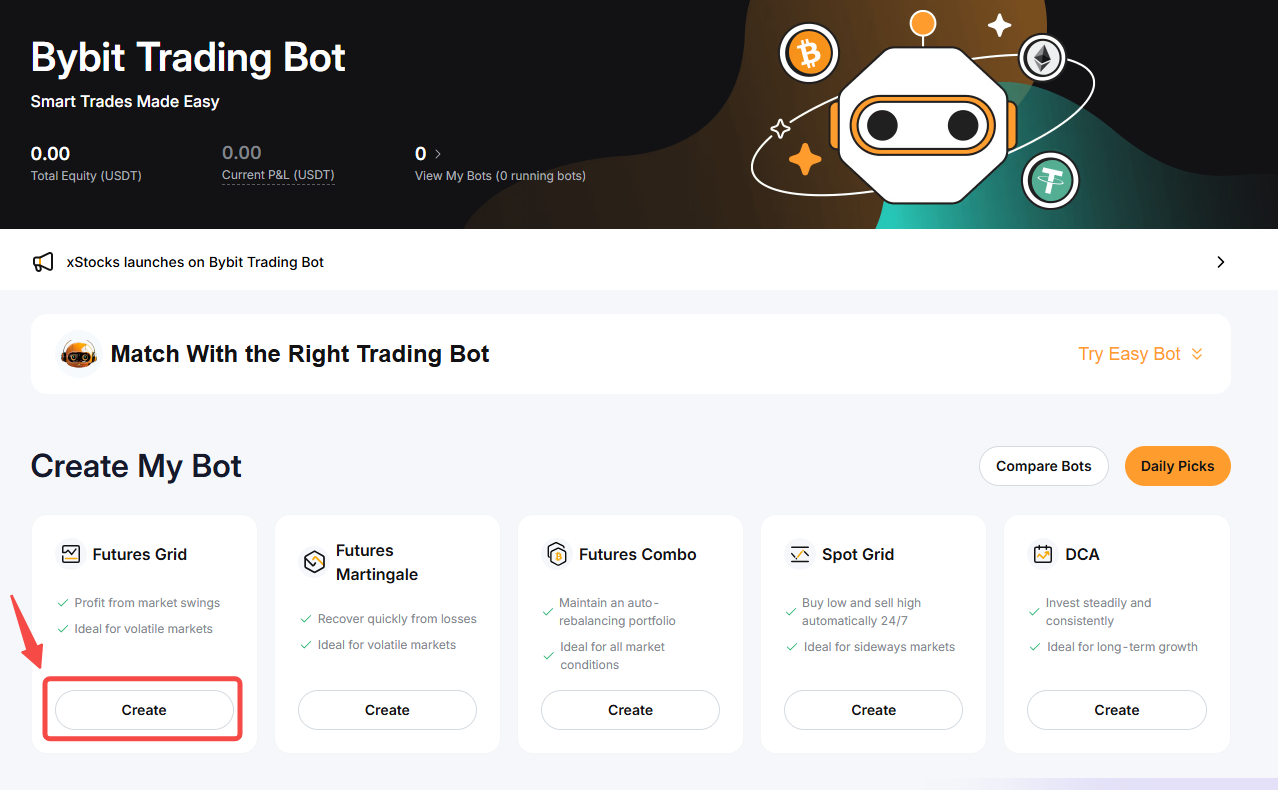


Note: You can create up to 50 Futures Grid Bots.


Step 3: You have two (2) options for creating Futures Grid Bots.


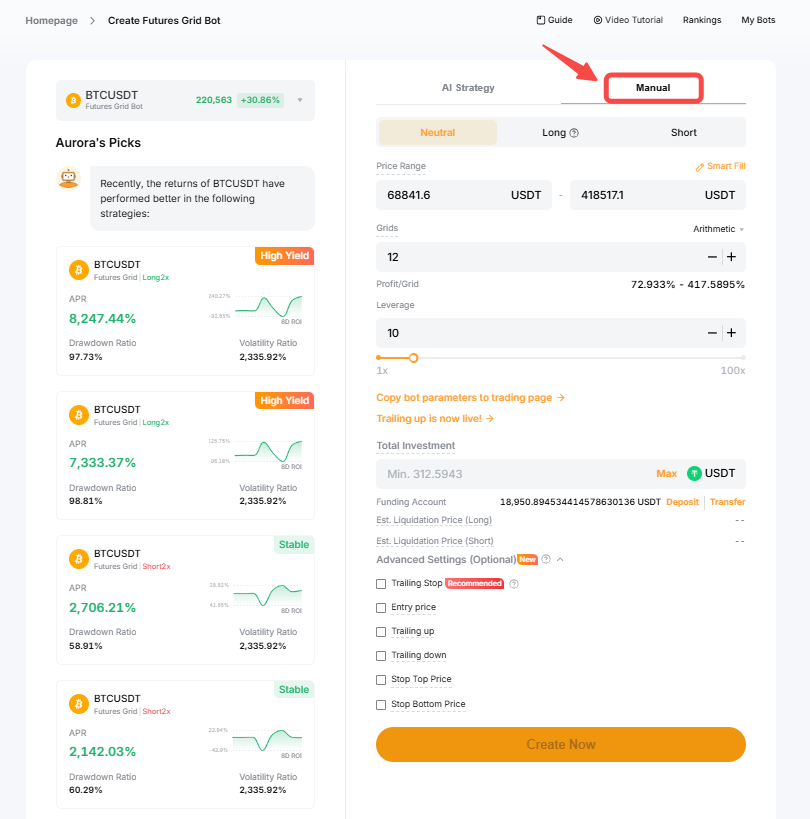
1. Manual

You can create a manual Futures Grid Bot via both the Trading Bots Page and the Futures Trading Page.

Parameters

Description

Pair

Select a Futures pair.

Order Direction

Select between Neutral, Long and Short. Please note that neutral is the default setting.


For more information on the difference between each order direction, you can refer to Introduction to Futures Grid Bot.

Price Range

Set lower and upper price bounds. The grid bot will only operate within the price range. If the market price falls outside this range, no new order will be placed by the grid bot.


You can click on Smart Fill to get the different fields automatically filled to fit the current market conditions.

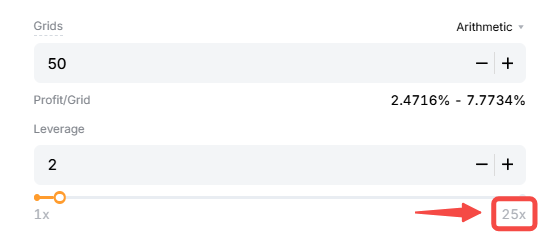
Grids

Enter the number of grids. The higher the number of grids, the smaller the price intervals. This means that in a volatile market, your orders may be filled more frequently, but your profits would be lower, due to multiple trading fees.


You can select between 2 different Grid type:

  1. Arithmetic: Each grid has an equal price difference. Arithmetic grid is the default setting.
  2. Geometric: Each grid has an equal price ratio difference.

Leverage

Set your preferred leverage. Please note that the leverage applied by default and the maximum leverage will differ for each trading pair. You can refer to the leverage bar to see the maximum leverage possible.


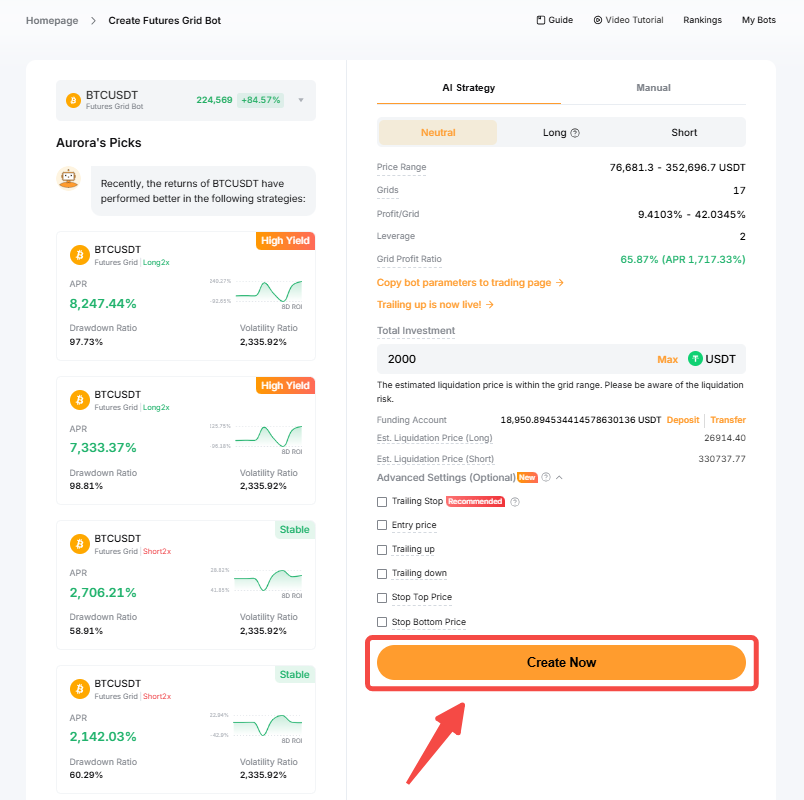
Total Investment

Enter the amount to invest. Please note that you need to have the assets in your Funding Account to create a bot.


You can use the Deposit and/or Transfer buttons to add funds to your Funding Account before proceeding to create your Bot.

Advanced Settings (Optional)

Trailing Stop: The Trailing Stop automatically adjusts your exit point based on your account's highest recorded equity. For example, if your equity fluctuates between 500, 450, 600, 900, 800, 1,000, and 800 at different points throughout the week, and you set a 20% retracement rate, your exit equity will be 400, 400, 480, 720, 720, 800, and 800, respectively. Please note that due to slippage, your final account equity may differ from the exit equity.

Entry Price: Set the entry price to create a Futures Grid Bot at a specific price level. If you do not set an entry price, the bot will automatically buy the coins at the current market price.


Notes:

— The entry price must not be lower than 30% of the current market price, or higher than 100% of the market price. Otherwise, the order cannot be placed.

— When the market price reaches the entry price, the grid bot will buy at the optimal price to ensure that the Futures Grid Bot is executed correctly.

Trailing up/down: Set the price at which the grid stops during an upward/downward trend. If this isn't set, the upward/downward shift will stop when there are insufficient funds to place 5 orders. For more information about the Trailing Up/Down feature, please consult this article.

Stop-Loss Price: When the market price of the coin reaches the Stop-Loss price, the bot will be terminated and automatically sell the base token into USDT at the predetermined level to limit your losses.


Notes:

— The Stop Loss ratio should not exceed 100%.

— The Stop-Loss price must be lower than the entry price and the lower price limit.

Take-Profit Price: When the market price of the coin reaches the Take-Profit price, the bot will be terminated and automatically sell the base token into USDT at the predetermined level to lock in your profits.


Notes:

— The Take Profit ratio should not exceed 500%.

— The Take-Profit price must be greater than the entry price and the upper price limit.


2. AI Strategy

Please note that the AI Strategy mode is only available when you create your Futures Grid Bot via the Trading Bots Page.


By using AI Strategy, the system will suggest the parameters based on the historical data performance of the Futures trading pair. Alternatively, you can also refer to the suggestion from Aurora’s Picks to create a Futures Grid Bot based on your preferences.
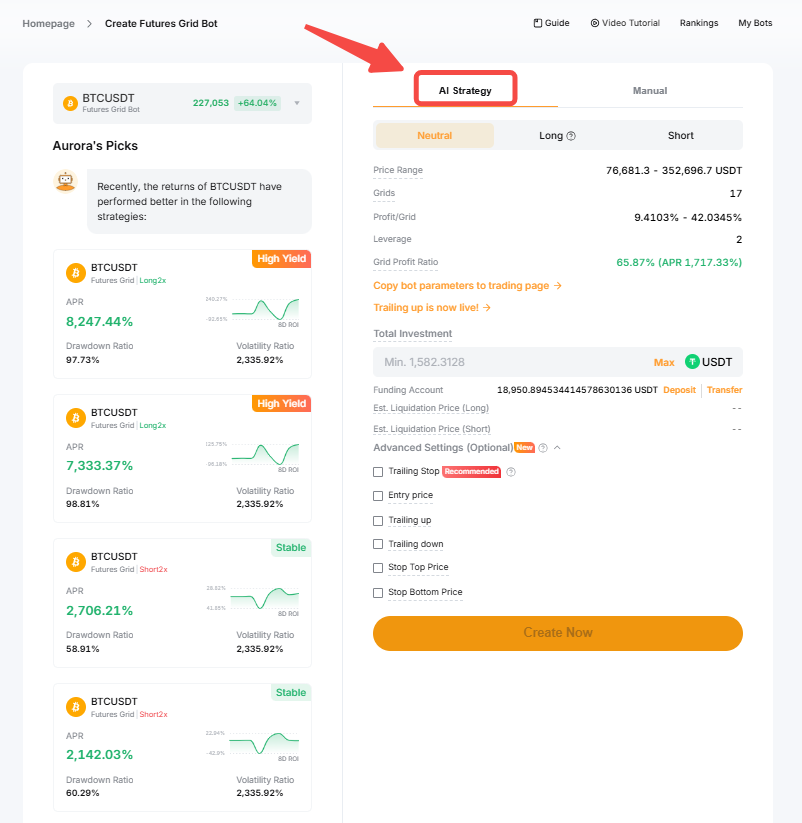


Then, click on Create Now.


Step 4: Please double-check the grid bot information you’ve created, and then click on Confirm to start trading.
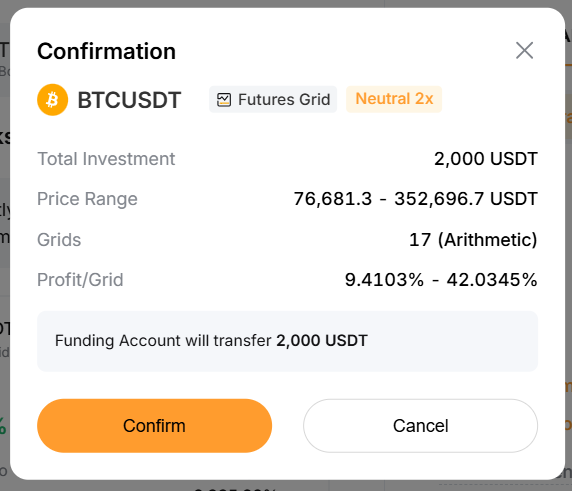


Your Futures Grid Bot has been successfully created! Once you have created trading bots, you can view the Total Equity (USDT) and Current P&L (USDT) at the top of the Bybit Trading Bot page.


View Your Futures Grid Bot

After you click on Confirm, the page will automatically redirect to My Bots for you to view your active grid bots.
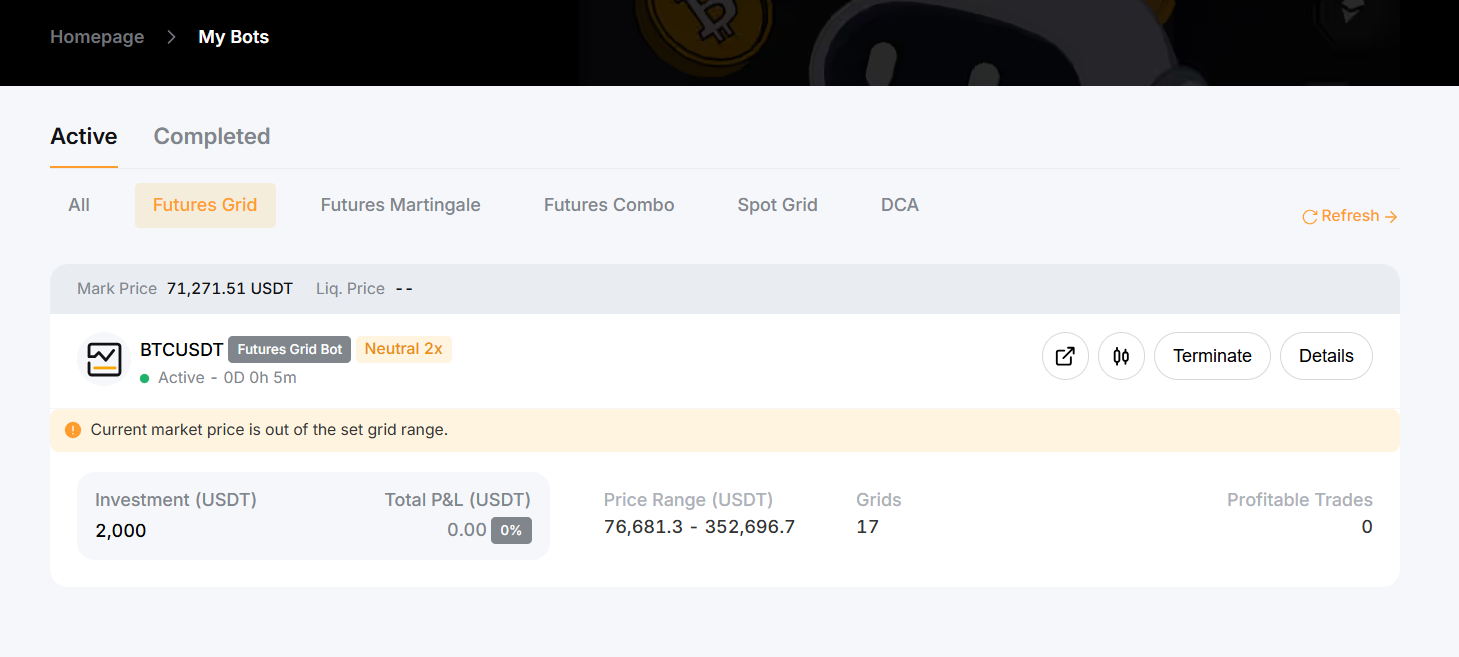


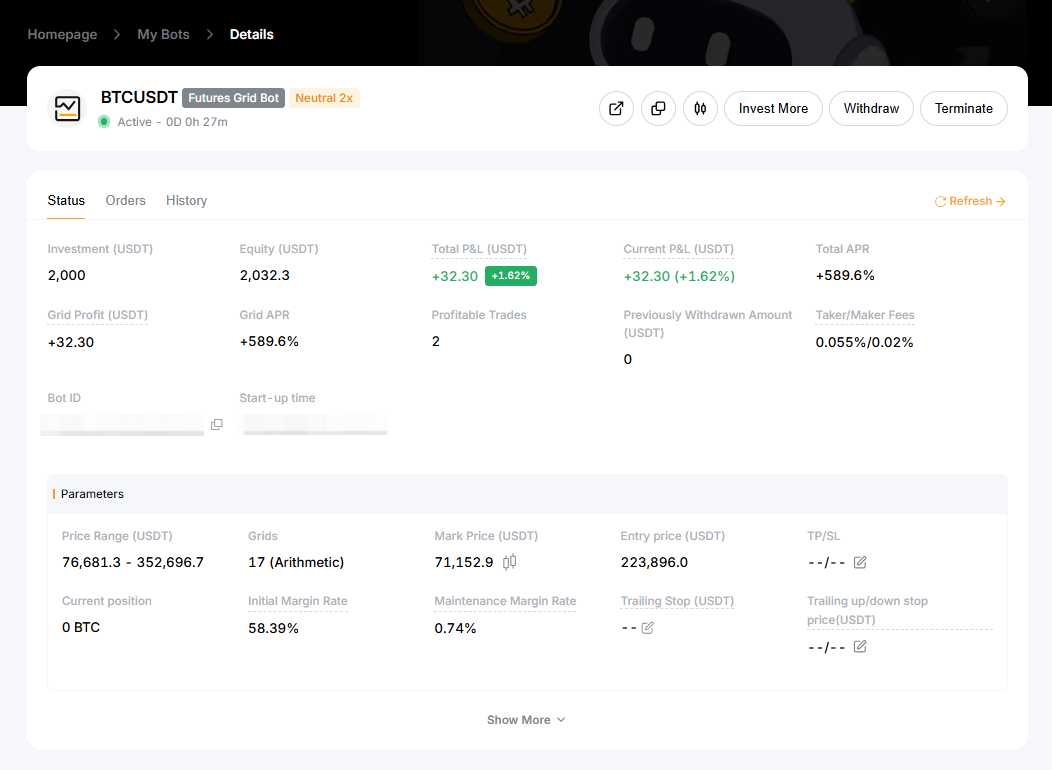
You can click on Details in the upper right corner of the grid bot you wish to view to explore more information, including the current status of your Futures Grid Bot, current orders under the Orders tab, and your order history.


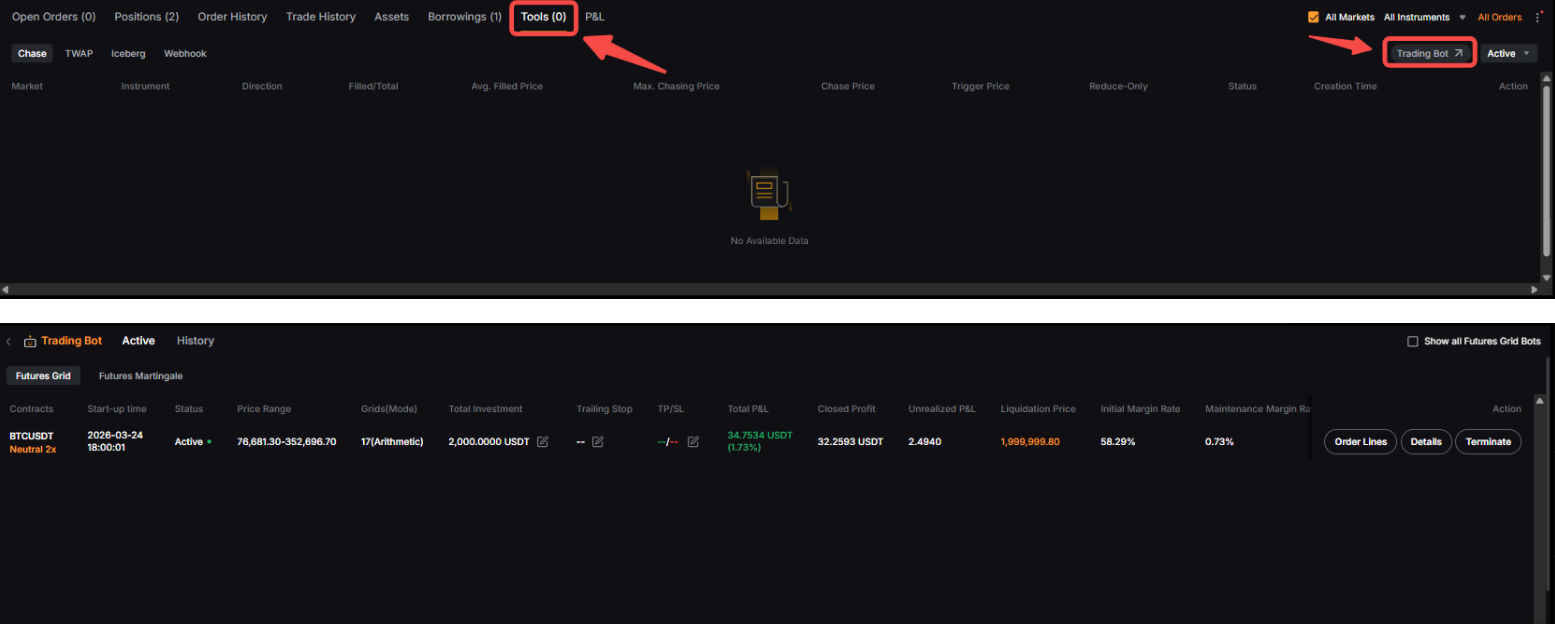
You can also see your active or closed Futures Grid Bot details on the Futures Trading pages by clicking on Tools → Trading Bot.


Please note that the calculation formulas for Total P&L and current P&L are as follows:

— Total P&L = Realized P&L + Unrealized P&L

— Current P&L = Realized P&L + Unrealized P&L − Cumulative Withdrawn Grid Profits

— Realized P&L = Realized Grid Profit - Fees

— Unrealized P&L = floating P&L from partially executed grid orders and positions that haven't fully closed


To learn more about profit and loss calculations, please refer to P&L Calculations (Futures Grid Bot).


Modify Futures Grid Bot Parameters

Once your Futures Grid Bot is created, you will be able to invest more funds into the Grid Bot by going to the details page of your Futures Grid Bot and clicking on Invest More.
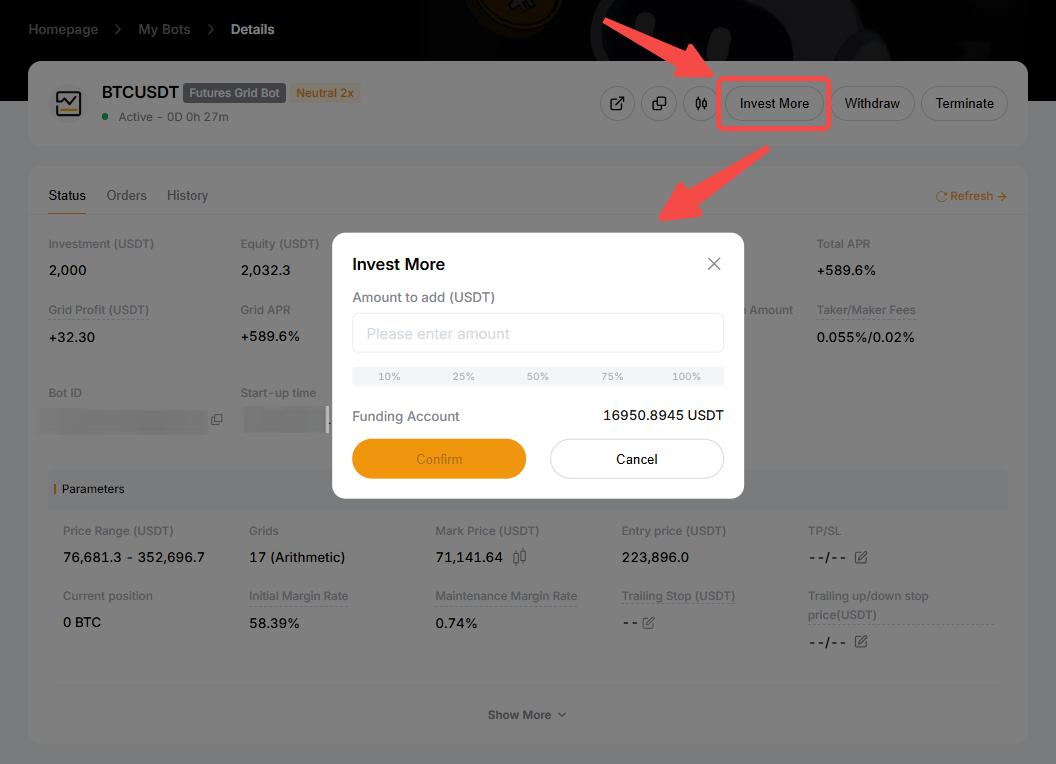


You can also modify the advanced settings of your Futures Grid Bot such as the TP/SL, Trailing Stop and the Trailing up/down Stop Price by clicking on the edit icon next to the relevant fields.
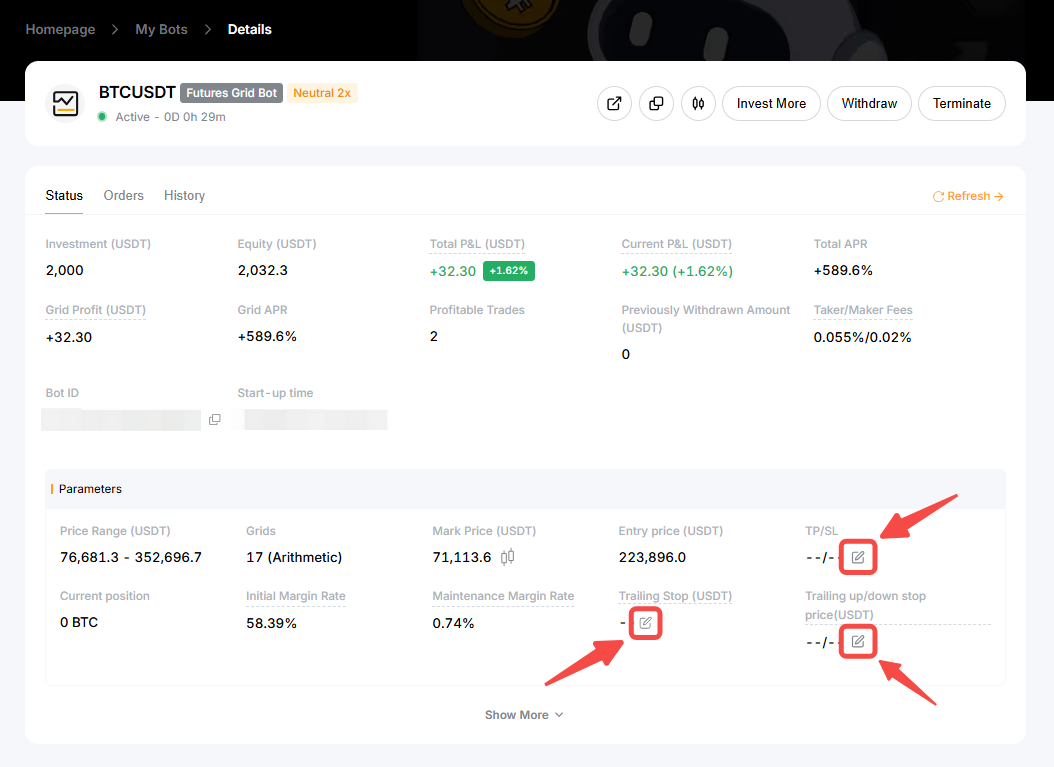


You have successfully modified your Futures Grid Bot parameters!


Withdraw Futures Grid Bot Profits

To withdraw your Futures Grid Bot profits, go to your bots Details and click on Withdraw.
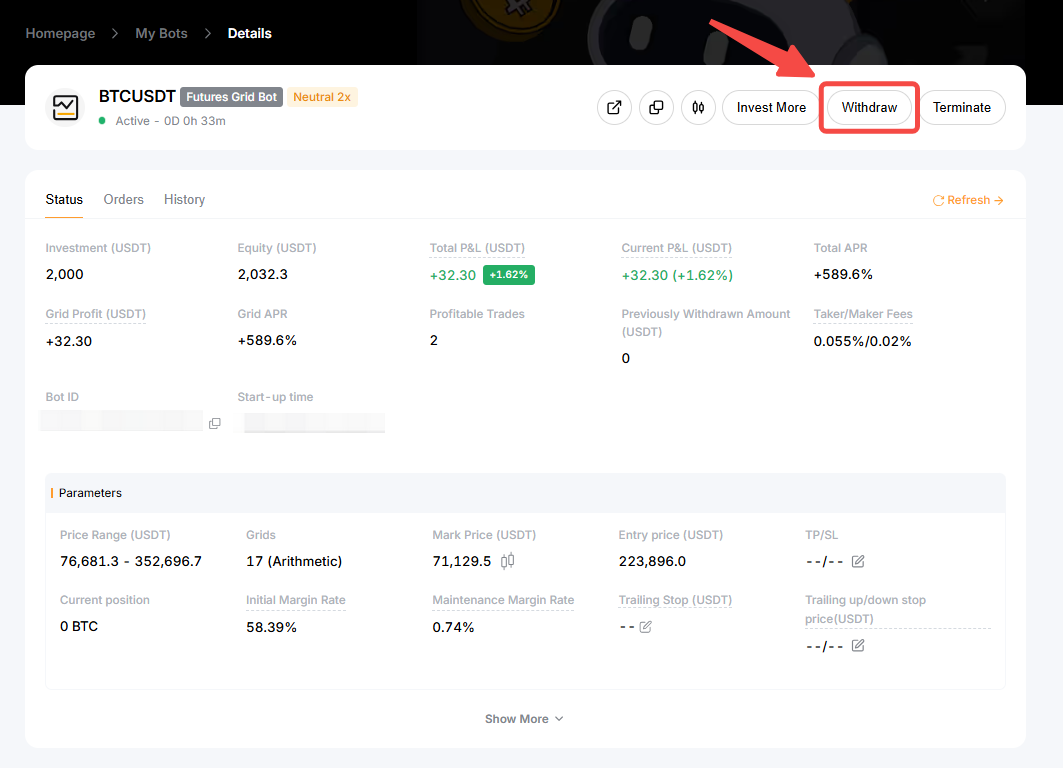


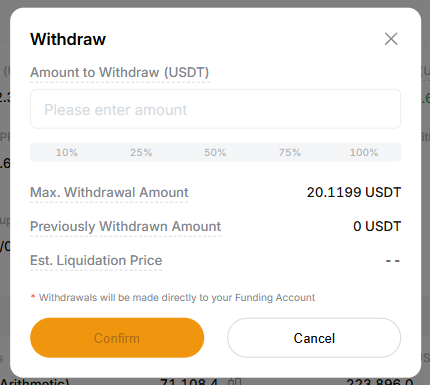
The maximum amount that can be withdrawn is your grid profit after the fee deduction. You can refer to the Max. Withdrawal Amount which is displayed on the withdrawal window. The withdrawn amount will be credited to your Funding Account.


Terminate Your Futures Grid Bot

To terminate your Futures Grid Bot, go to the details page of your Futures Grid Bot and click on Terminate.
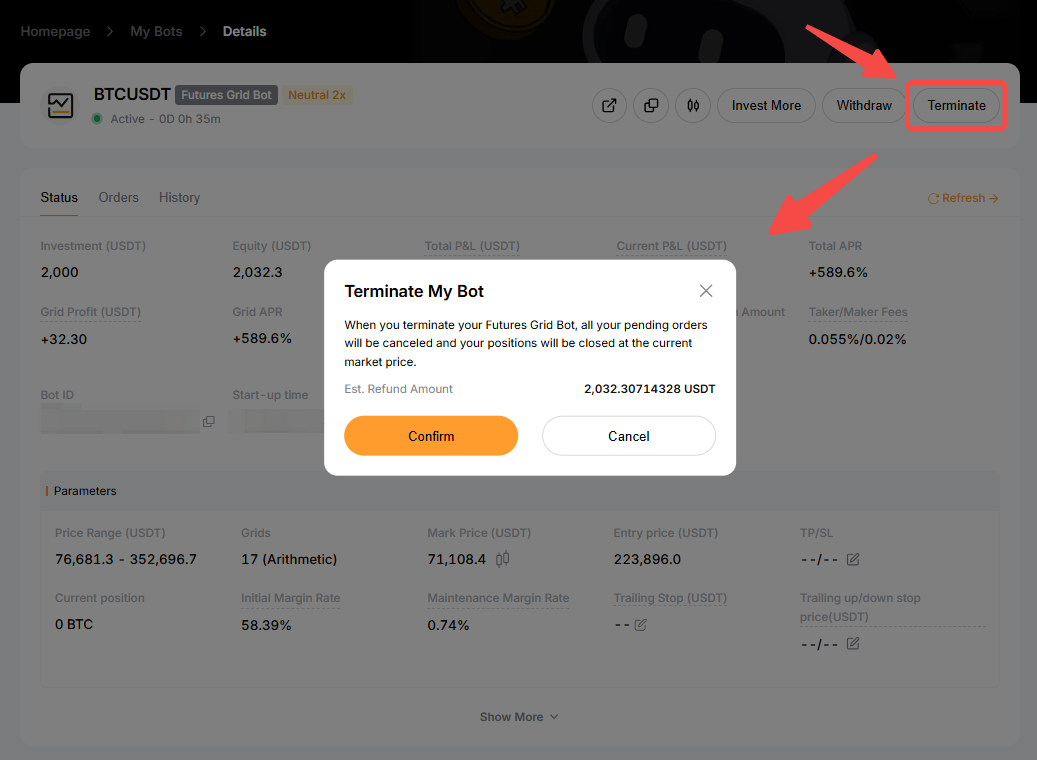


Once the bot is terminated, all pending orders will be canceled, and your funds will be returned to your Funding Account.


Was it helpful?